First, make sure you understand what embeddings are and what they’re used for. Please read this documentation to get a clear overview of the concept.
Go to the “Modules” of AI Engine. Enable the “Knowledge” option to display the “Knowledge” tab:
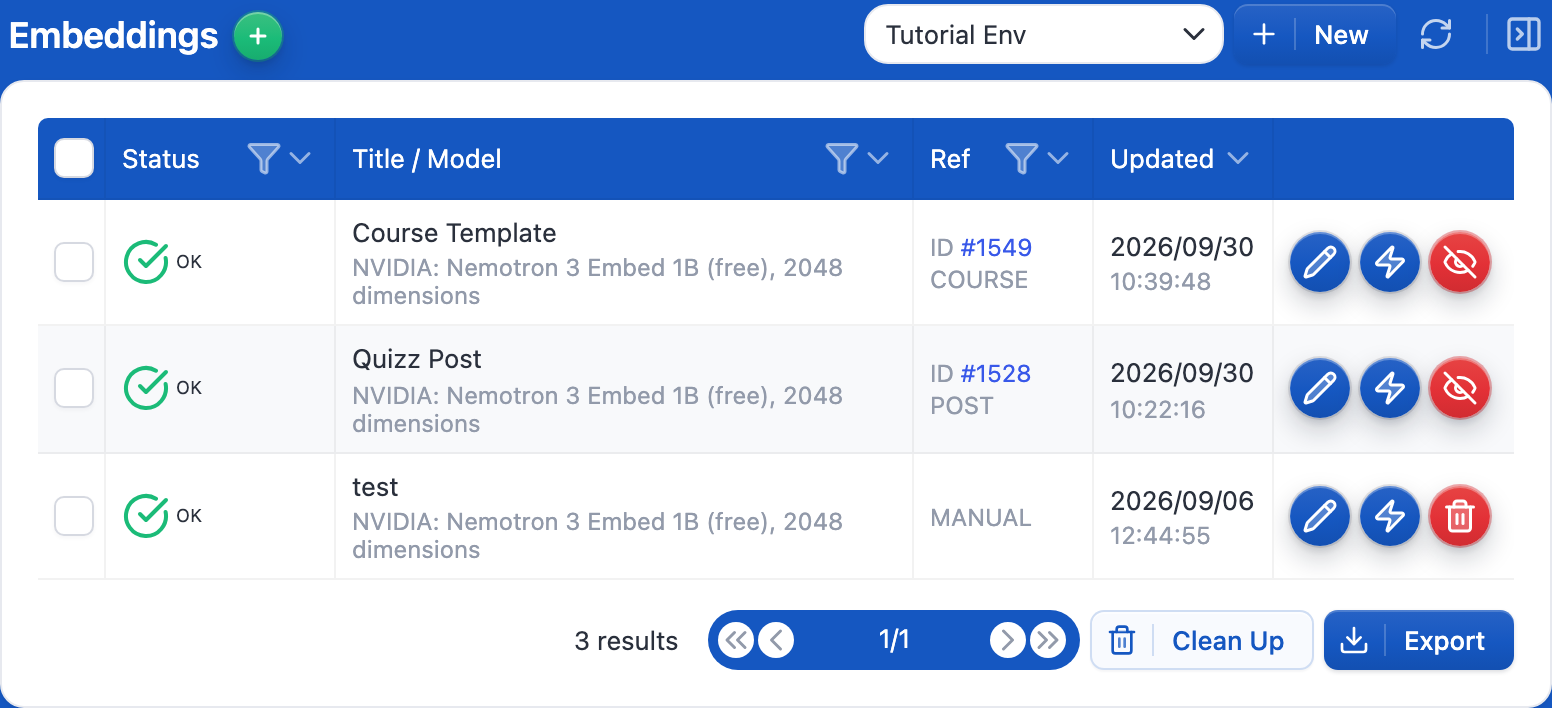
You should now see a new tab called “Knowledge”. This is where you’ll manage all your embeddings within AI Engine.
From this tab, you can create, upload, organize, and maintain your knowledge bases.
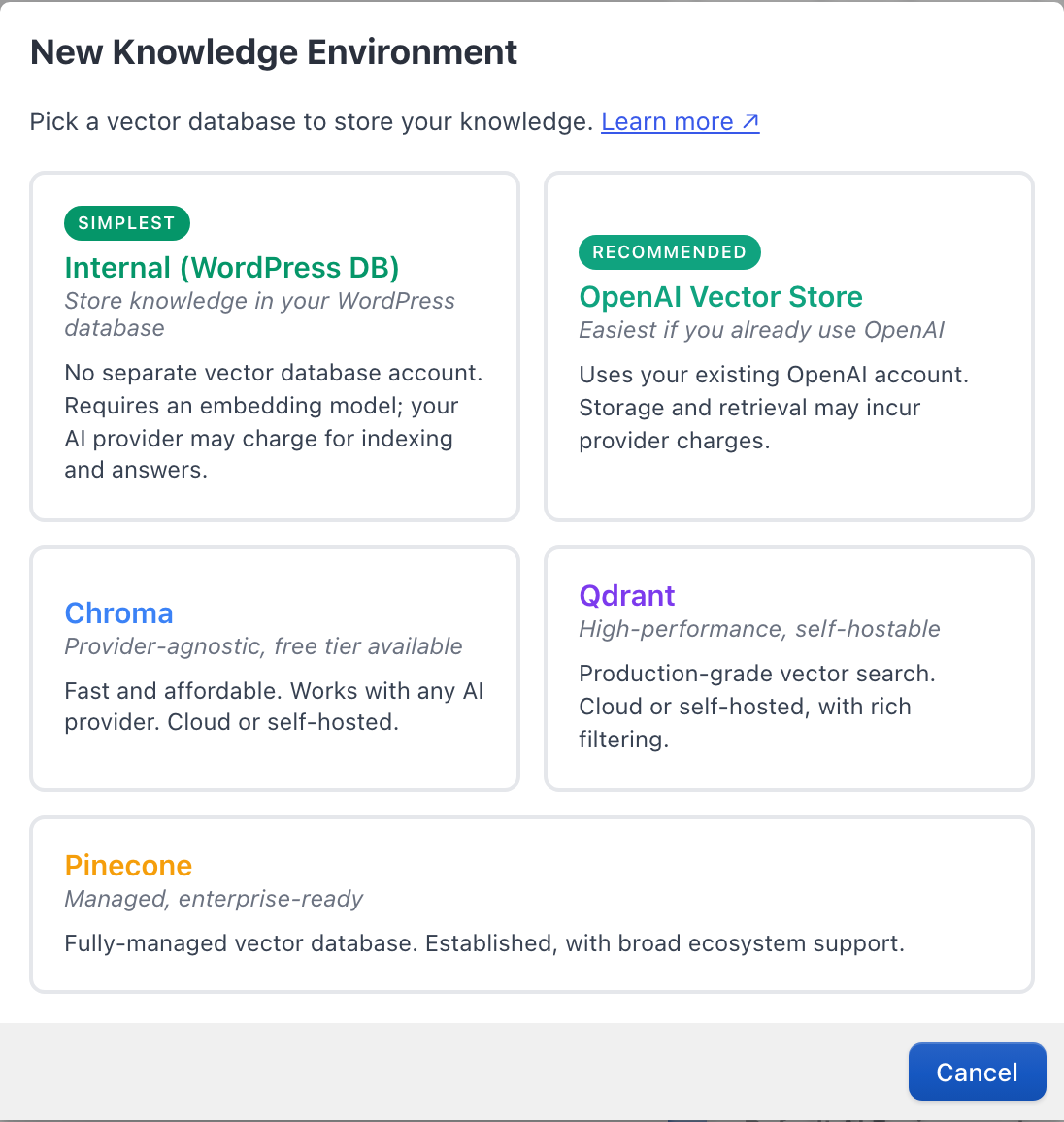
Now you’ll need to create the environment, which only takes a few clicks. Go in the Settings tab, under the Knowledge section, click the green + button next to Environments for Embeddings.
Select Qdrant.
Now you need a Qdrant server. The easiest way is Qdrant Cloud ↗: create an account and a cluster (the free tier is enough to get started). From your cluster, copy two things: its Cluster URL and an API key. If you prefer, you can also run Qdrant on your own server (it is open source).
Back in Settings → Knowledge → Environments for Embeddings, fill in your Qdrant environment:
API Key: the API key of your cluster.
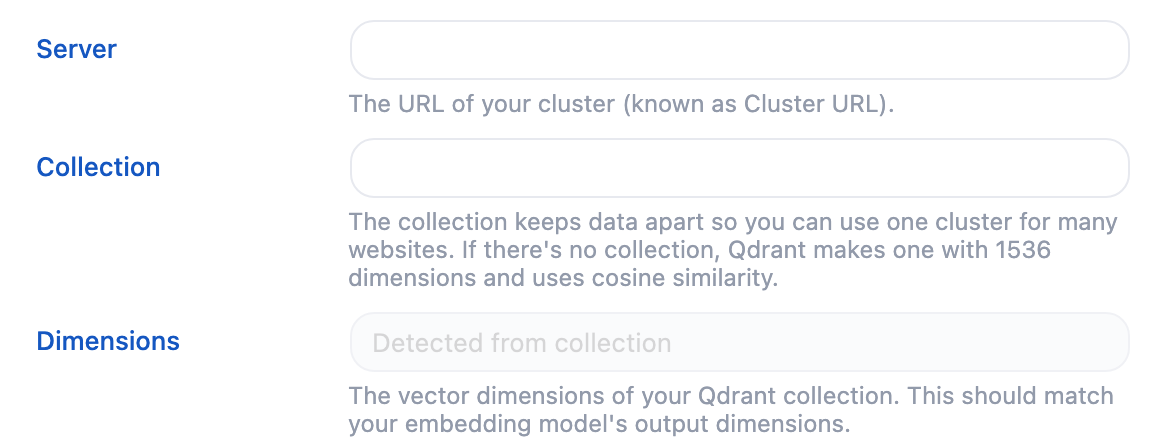
Server: your Cluster URL. If you copied the address of the Qdrant dashboard from your browser (something like https://xxx.cloud.qdrant.io:6333/dashboard#/collections), that works too: AI Engine removes the dashboard part for you.
Collection: the name of the collection that will hold your embeddings. If you leave it empty, AI Engine uses mwai.
You don’t need to create the collection yourself. If it doesn’t exist yet, AI Engine creates it when you add your first embedding, with the size of your embeddings model and cosine similarity.
Click Quick Test (under Actions) to check the connection. If the collection already exists, its dimensions are detected and shown in Dimensions. They must match the dimensions of your embeddings model (set in Settings → AI → Default Environments for AI → Embeddings); if they don’t, AI Engine shows a Dimension Mismatch warning.
You’re done! 🎉
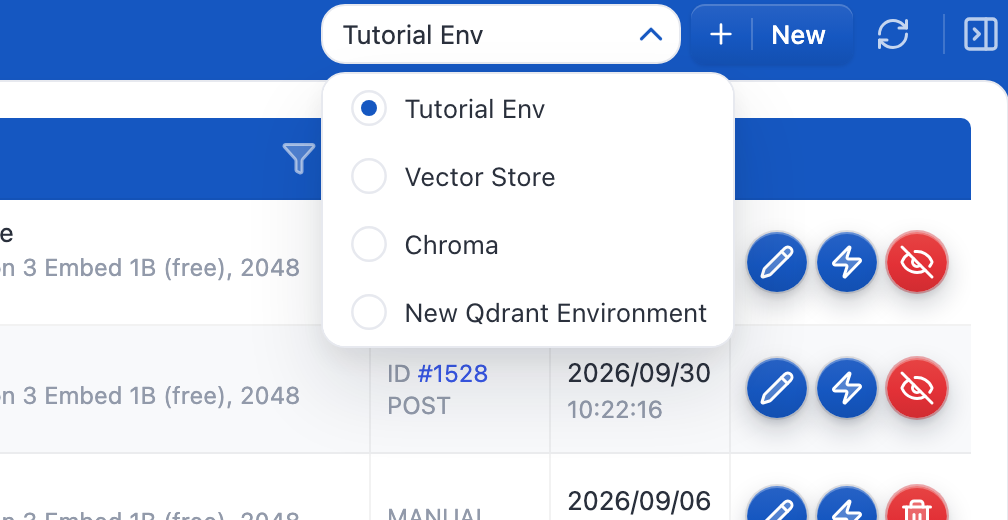
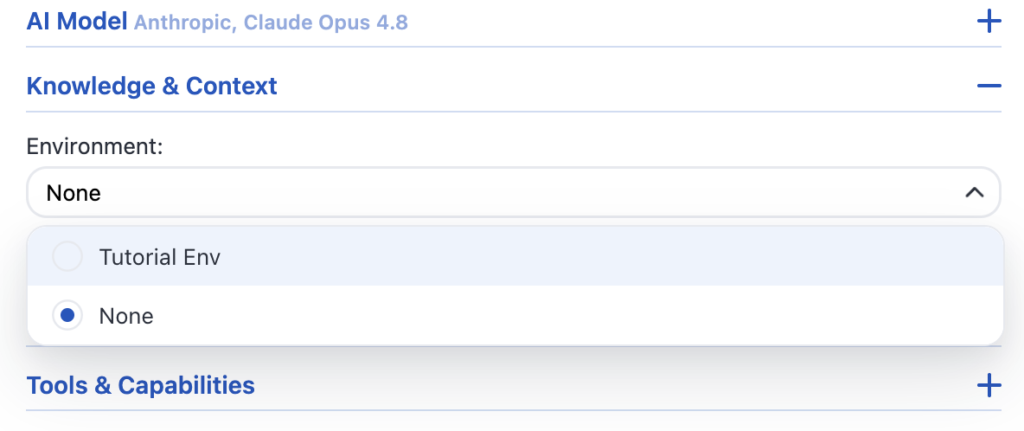
Now, go back to the Knowledge tab, select your environment in the “Select” input and start adding your embeddings.
You can read this documentation to explore the different ways to create or import them, depending on your workflow and the type of data you want to use.
Don’t forget to select this environment in your chatbot settings to actually use it.
Advanced
Collections
One Qdrant cluster can hold many collections. Create one Knowledge environment per collection (with the same API key and server, and a different collection name) to keep separate knowledge bases for different chatbots or different websites.
Moving your site
AI Engine stores the text of each chunk (and its post ID) in Qdrant, next to the vector. If you move your site or lose the local embeddings table, enable Expert Mode in the Knowledge tab, open the Admin tab of the Environment section and click Pull All: your Knowledge base is rebuilt from Qdrant. This works for embeddings created with AI Engine 3.8.4 or newer, since older ones didn’t store their text in Qdrant.