First, make sure you understand what embeddings are and what they’re used for. Please read this documentation to get a clear overview of the concept.
Go to the “Modules” of AI Engine. Enable the “Knowledge” option to display the “Knowledge” tab:

You should now see a new tab called “Knowledge”. This is where you’ll manage all your embeddings within AI Engine.
From this tab, you can create, upload, organize, and maintain your knowledge bases.
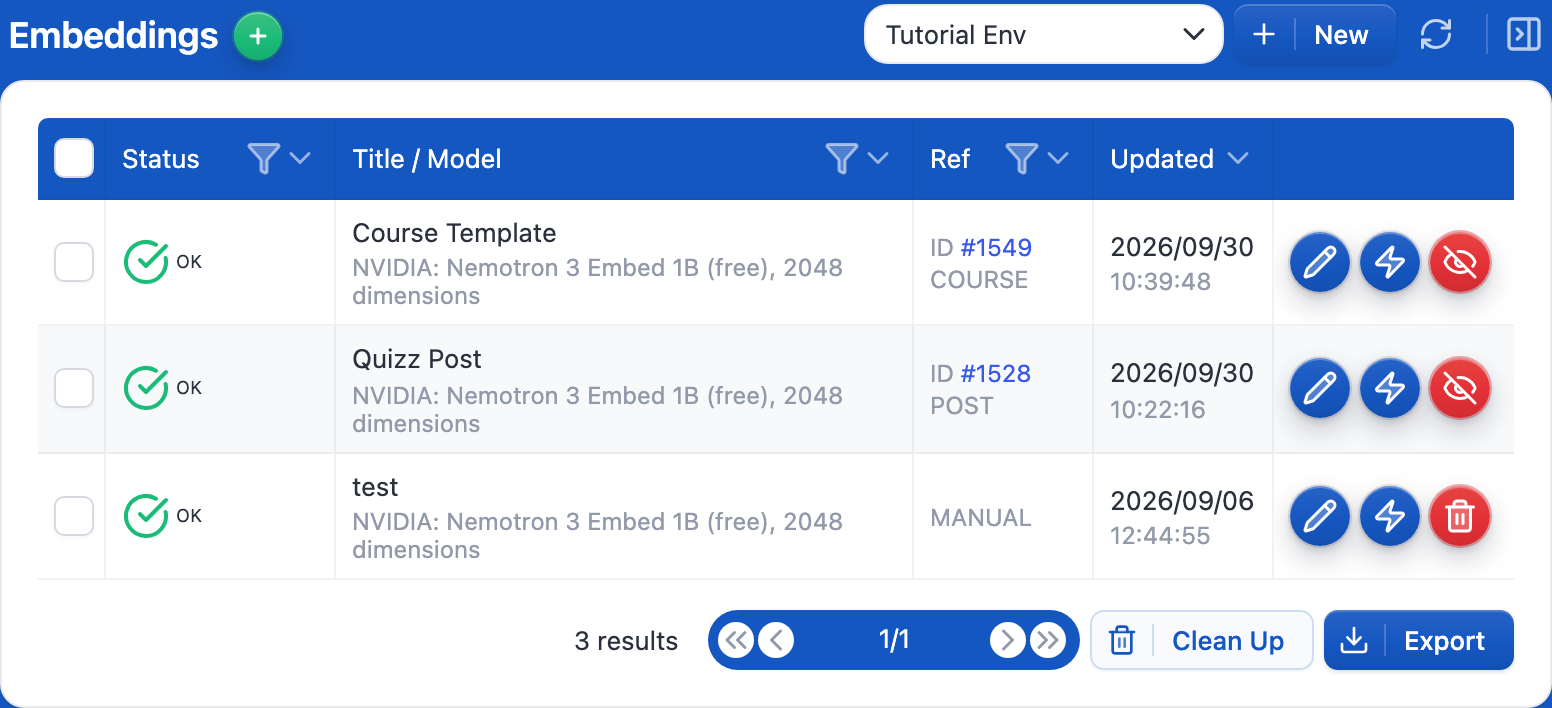
Now you’ll need to create the environment, which only takes a few clicks. Go in the Settings tab, under the Knowledge section, click the green + button next to Environments for Embeddings.
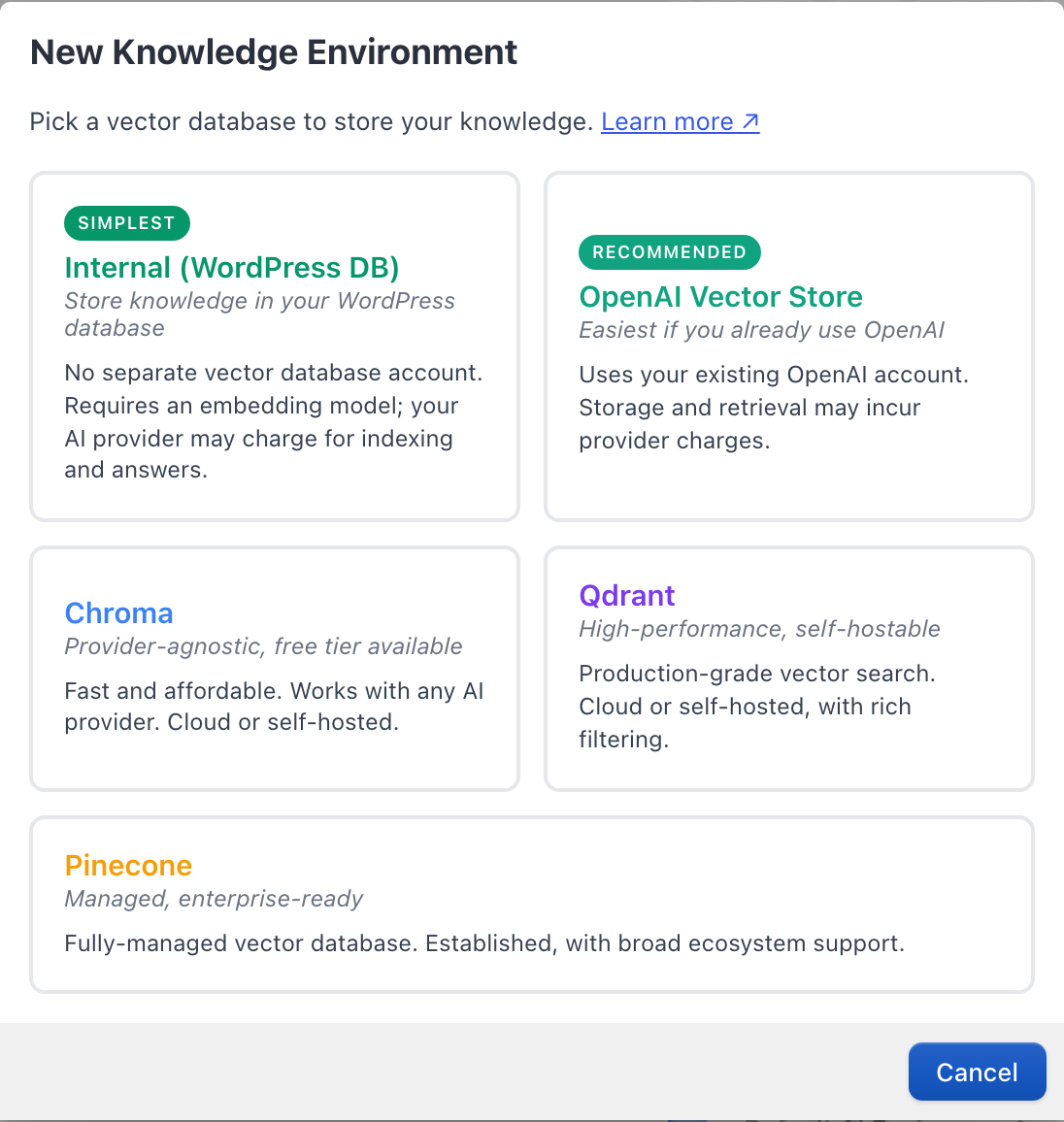
In the list of vector databases, pick OpenAI Vector Store. It is the easiest path if you already use OpenAI: no extra account, no extra bill, and OpenAI reads your PDFs for you.
Create the Vector Store
In Settings → Knowledge, your new environment shows a few fields:
- OpenAI Environment: pick the OpenAI environment (your API key) that AI Engine should use.
- Vector Store ID: click Create. AI Engine creates the vector store on OpenAI for you and fills in its ID (it starts with
vs_). There is nothing to do on the OpenAI platform.
Upload your documents
Go to the Knowledge tab and select your environment in the dropdown at the top. An OpenAI Vector Store holds two kinds of content, and you switch between them with the two buttons above the table:
- Documents: files (PDF, DOCX, MD, TXT, and more) sent as they are to OpenAI, which reads, splits and indexes them on its side. This is the one you want for “a chatbot that answers from my PDF”.
- Embeddings: entries you manage yourself, like your WordPress posts (synced automatically) or text you write by hand.
Click Documents, then Upload Document on the right. Choose one or several files and click Upload. Each file appears in the list, and its status turns to OK once OpenAI has finished processing it. Nothing is processed on your server.
Use Documents → Upload Document, not the Upload PDF button of the Embeddings view. Upload PDF splits the file on your own site into embeddings, which is slower and meant for other vector databases.
If your file is too big for your hosting (the upload fails with a message about upload_max_filesize), upload it on the OpenAI Platform ↗ in the same vector store instead, then come back and click Sync from OpenAI. The file will show up in your Documents.
Use it in your chatbot
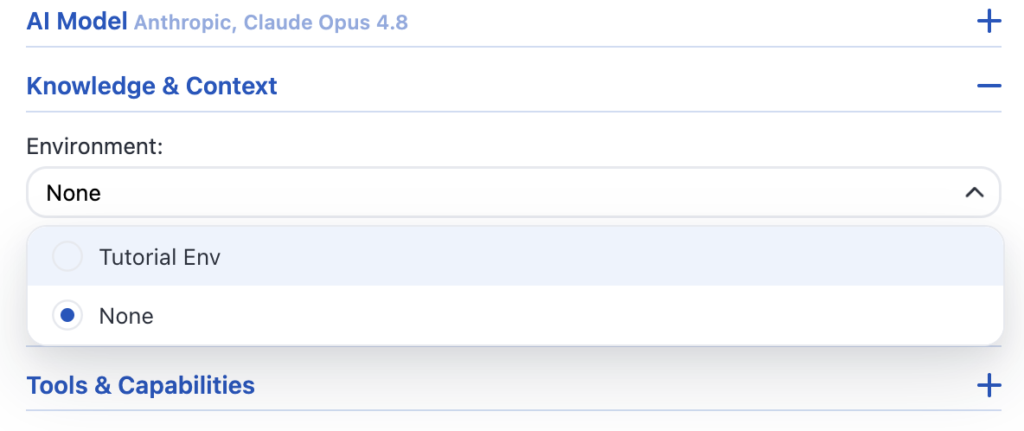
Open your chatbot in the Chatbots tab. In Knowledge & Context, set Environment to your OpenAI Vector Store. That’s it: your chatbot now searches your documents before it answers. This works with any model, not only OpenAI ones: a chatbot running on Claude, Gemini or another provider also receives the matching content from your vector store.
To check it works, ask your chatbot a question that only your document can answer.
Good to know
- Only real text is searchable. A PDF made of scanned pages or photos of text has no text inside for OpenAI to read, so the chatbot won’t find it. If you can’t select the text in your PDF viewer, run it through OCR first (most PDF tools can do this).
- OpenAI’s limits: up to 512 MB and 5,000,000 tokens per file. Large books fit easily.
- Storage cost: the first 1 GB of vector store storage (across all your stores) is free, then OpenAI charges $0.10 per GB per day. Check OpenAI’s pricing ↗ for the current rates.
Advanced
Using an existing vector store. If you already created a vector store on the OpenAI Platform ↗, paste its ID (vs_...) into Vector Store ID instead of clicking Create, then click Sync from OpenAI in the Documents view to list its files in AI Engine. Large vector stores are synced page by page, so even a store with many files won’t time out.
Syncing your posts. In the Embeddings view, you can also push your WordPress posts and pages into the same vector store, like with any other vector database. Documents and embeddings are searched together when your chatbot queries the store.