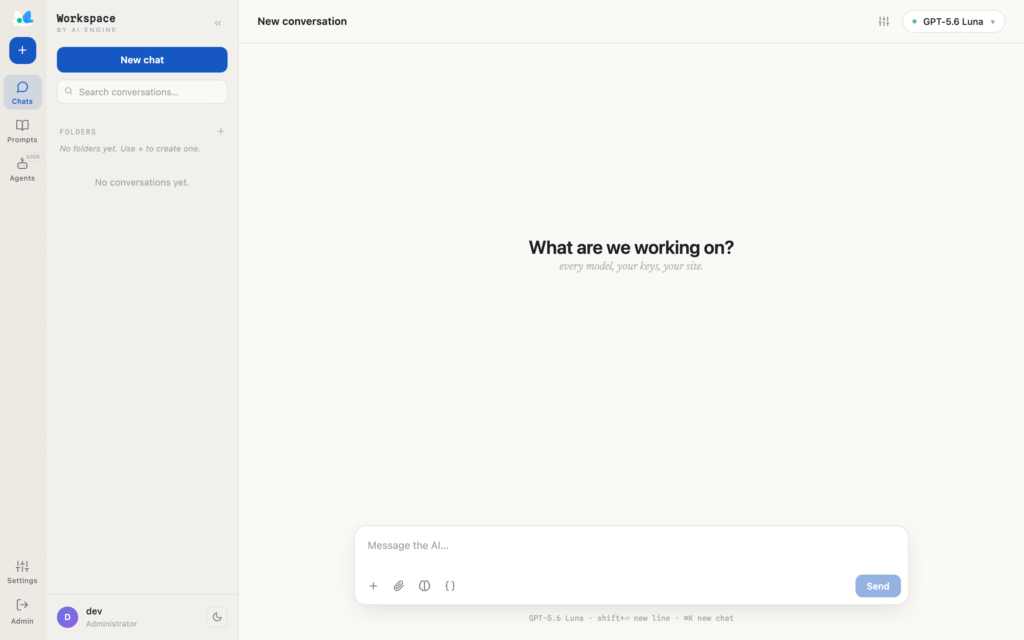
The Workspace is a full-screen AI chat inside your WordPress admin. Think of it as your own ChatGPT, but running on your site: it can use every model you set up in AI Engine, with your own API keys, and it can read and work on your site for you (write a draft, fix a typo on a page, answer a comment, create an image for a post…).
Your conversations are kept on your own WordPress, not on a third-party service. The Workspace is free. Inside it, Knowledge, MCP Servers and Functions need AI Engine Pro. For now, only administrators can use it.
Turn it on
Go to AI Engine → Modules and enable Workspace.

Then open it with the Workspace button in the AI Engine header, or from the WordPress admin bar at the top of every admin page.
Chatting
Pick a model at the top right and start typing. You can switch models at any time, even in the middle of a conversation. A conversation continues on the model of its last reply, and a new chat starts on your default model. The sliders icon next to the model lets you change its parameters (temperature, reasoning, etc.) for this chat.
On the left, you’ll find your conversations. You can search them, pin them, sort them into folders, rename them, export them as Markdown, or delete them. Prompts is where you keep the prompts you use often: click one and it goes into the message box. In Settings, you can choose a light or dark theme and an accent color. These are personal, each admin has their own.
Features
Click the + button in the message box to see what the AI can use in this chat. Click the pin next to a feature to keep its button in the message box.
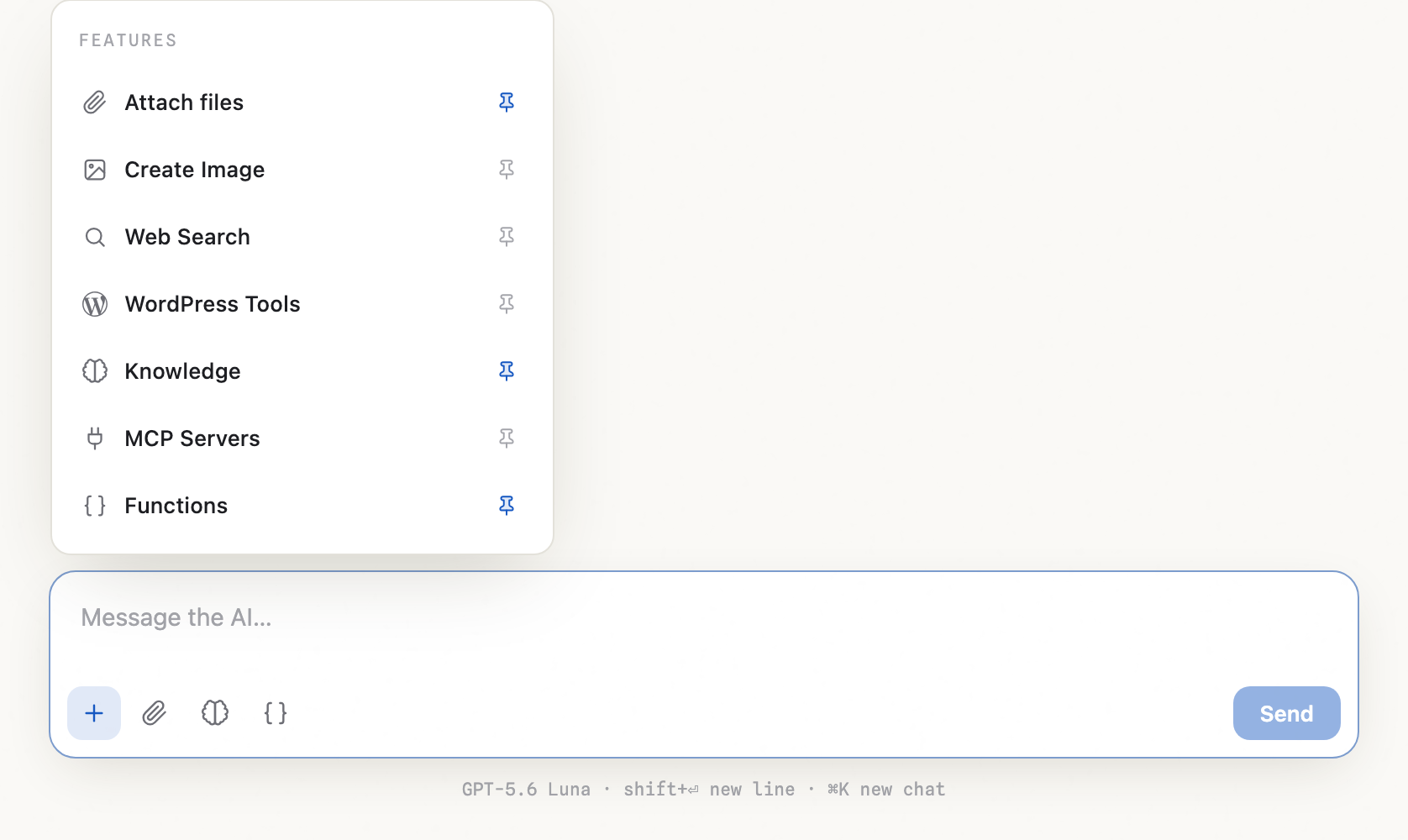
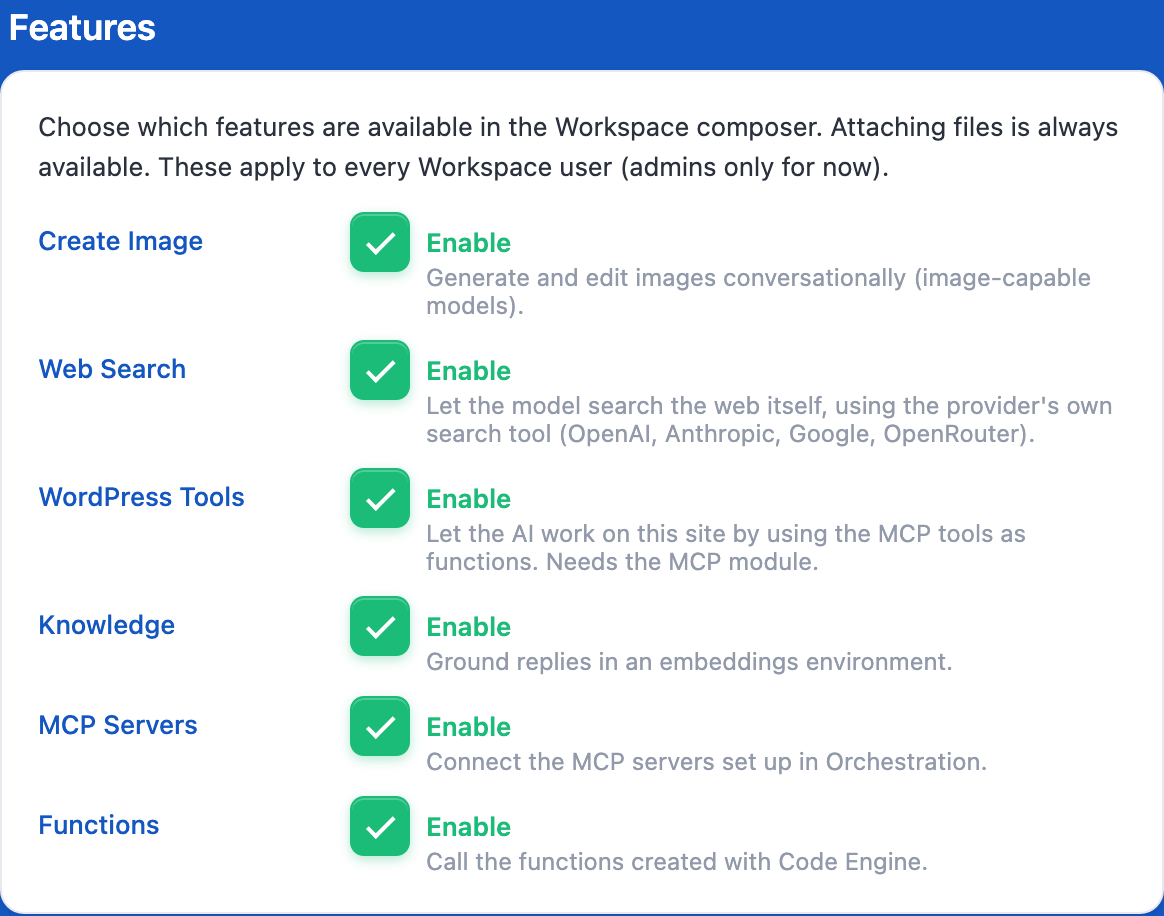
- Attach files: send up to 8 files with your message (images, PDFs, etc.). You can also drop them on the chat. This one is always available.
- Create Image: create and edit images by simply asking, with a model that can make images. You can then save them to your Media Library.
- Web Search: the model searches the web on its own, with the search tool of its provider (OpenAI, Anthropic, Google, OpenRouter).
- WordPress Tools: the AI can work on your site. More about this below.
- Knowledge (Pro): the replies use one of your Knowledge environments.
- MCP Servers (Pro): connect the remote MCP servers you added in AI Engine (see MCP).
- Functions (Pro): call the functions you created with Code Engine (see Function Calling).
You decide which of these are available in AI Engine → Settings → Workspace. The choice applies to everyone using the Workspace.
Let the AI work on your site
WordPress Tools gives the AI the same tools Claude or ChatGPT get when they connect to your site through MCP: posts, pages, media, comments, categories, and any extra tool set you enabled (plugins, themes, WooCommerce, SEO Engine…). It needs the MCP module to be enabled, but there is nothing to connect: it works with every model, from any provider.
Tools that only read (list posts, read a page, count comments…) run right away. Before anything that changes your site, the Workspace stops and shows you what the AI wants to do, with the details. You can Deny it, Allow Once, or Always Allow in This Chat. Nothing is ever changed without your approval.
For example: “Find my last three drafts and fix the spelling mistakes”, or “Reply to the pending comments on my Japan post, in a friendly way”.
On your phone
The Workspace also exists as a free app for iPhone and Android. It talks to your own site: every model you set up, your keys and your tools, with your conversations saved on your site. Image creation works too.
To connect it, go to AI Engine → Settings → Workspace and click Show QR code (you’ll also find this on the Dashboard). In the app, choose Add a site and scan the code. That’s it!
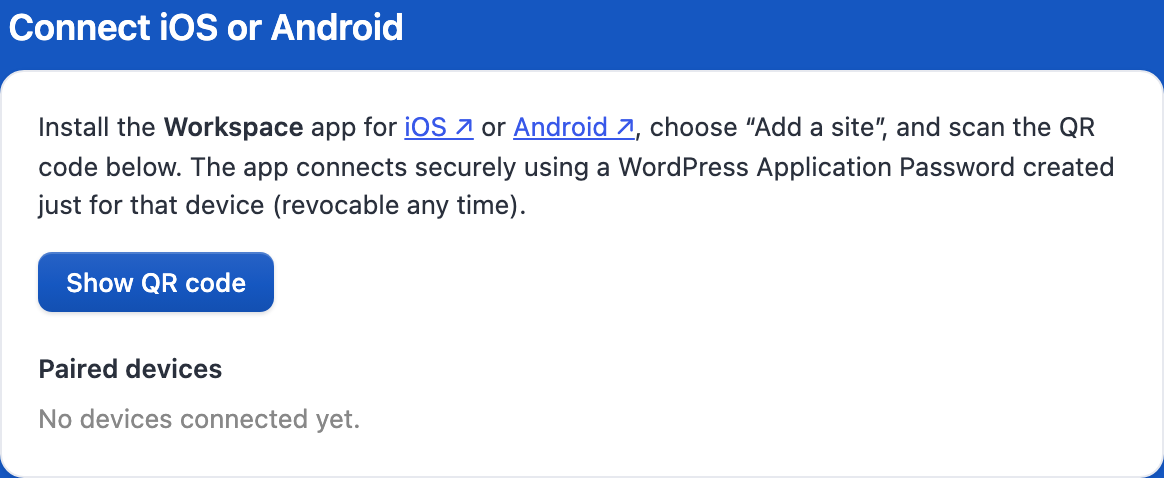
The QR code works only once, and only for 5 minutes. Behind the scenes, the app gets its own WordPress Application Password, tied to your account. Each phone appears under Paired devices, where you can rename it or disconnect it at any time.
If something doesn’t work
- “Application Passwords are disabled on this site”: WordPress only allows Application Passwords on sites using HTTPS. Switch your site to HTTPS, or check that no security plugin turned Application Passwords off.
- The pairing failed: click Show QR code again to get a new code. A code that was already used, or is older than 5 minutes, won’t work.
- The app can’t reach your site, but the site works in a browser: your host probably restricts the REST API (by country, by IP, or to logged-in users), or removes the Authorization header. Have a look at When Your Host Blocks AI Engine.
- A feature is missing from the + menu: check that it’s enabled in Settings → Workspace. WordPress Tools also needs the MCP module, and Knowledge, MCP Servers and Functions need Pro.