The AI Engine Web Search can work both with Function Calling and as a RAG. You can use it with all Function Calling–compatible models ( not only from OpenAI, Anthropic or Google ) but also as a RAG with any model from any provider. It also offers you the choice to use different web search services, monitor, and reconfigure them.
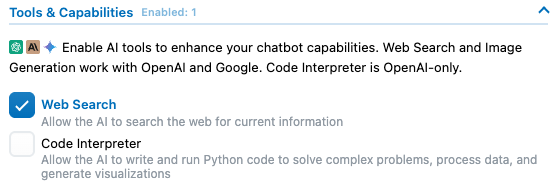
If you only plan to use web search with an OpenAI/Anthropic/Google model, you can use the Tool instead. It’s free, requires no code or configuration, and comes built-in with supported models.
This approach runs entirely on the providers’ side, so you won’t have any control over it, there are no settings to customize or tweak the results. However, it’s a free and straightforward solution.
How does it work?
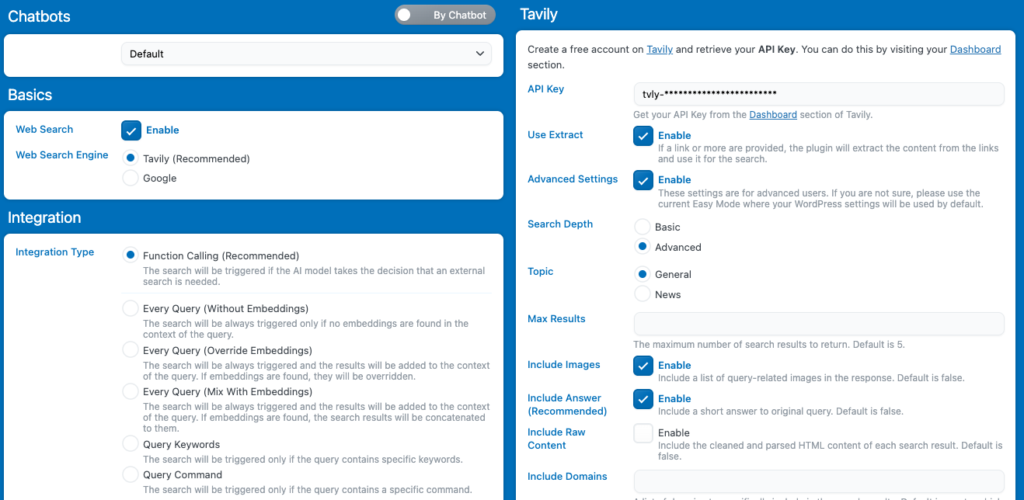
You can simply open the addon settings and configure your Search API settings for each chatbot, or apply them globally to all chatbots.
Make sure to check the “Enable” Web Search option. If this is not enabled, the web search feature will not run at all.
If you are using function calling, your chatbot can simply search the web on its own, similar to how the Tool would work. This will trigger the add-on web search query, and once it is done, the model will interpret the results.
If you are not using function calling, the system works as a RAG (Retrieval-Augmented Generation). Before it is actually sent, the user’s query will be transformed into a web request and sent through the API you choose in the add-on settings. The data from the web search will then be added to the current context for the ongoing discussion; you can think of it as embeddings in terms of how the data is added.
Difference between Google and Tavily
Using Google will perform a Google search and have the same result (depending on your search engine settings) as if you were doing a manual search on the Google home page. This means you mostly have titles, links, and excerpts. The Google API isn’t a web crawler; you cannot have access to the content inside the searched web items; you cannot ask to have the content of a specific page. The only thing it does is a Google web search. Those results are then converted to text and handed to the model for interpretation.
If you are using Tavily, you will likely get better results. This will perform the same as Google but will also be able to send the content of the searched items, like a web crawler. It will also use AI to provide an already formulated response for the web search based on web results for your model to base its response on. You will also be able to receive image references (that can be displayed in the chatbot as well with Markdown format). This also allows you to do the other way around: send a link to any website in the chatbot, and the link will get crawled, so the chatbot can “visit” and understand any website link that is sent to it. Don’t be shy of using the “Advanced Settings” section where you can enable this behaviors.
Troubleshooting
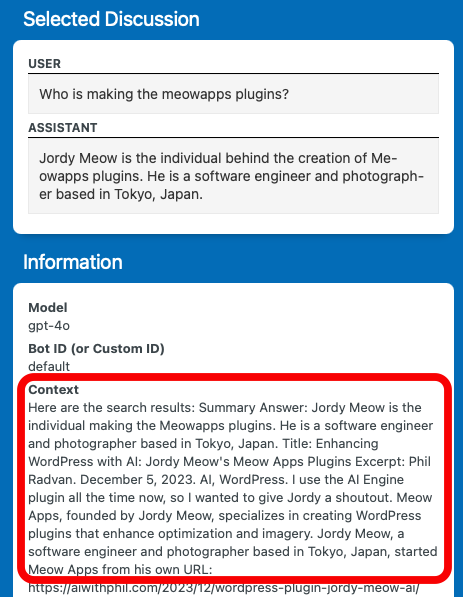
You can go inside the AI Engine settings and enable the Dev Tools to have access to the log console. Whenever the Web Search add-on makes a search, you can see the result in this console. Also, you can check the context added to your chatbot in the discussion and/or the query tab as well.
Make sure that your chatbot’s context length is long enough to include the web search content. Also, if you are using embeddings and a merge integration, ensure that the embeddings are not taking up all of the context already, which might not let the web search content be added.
If it looks like the web search is triggering but the context of your chatbot appears empty or missing, this could be because you don’t have enough space in your context. Make sure your chatbot’s Context Max Length setting is high enough to store this data. If you’re also using embeddings, you need to account for the addition of both. This can be set per chatbot, but there’s also a general setting in the options.