This page helps when Claude, ChatGPT or another AI assistant cannot connect to your site through MCP, loses the connection, or cannot do what you ask. If you haven’t set up MCP yet, start with MCP (Model Context Protocol).
Before anything else, update AI Engine. Many connection problems (connections that drop after a while, sign-ins that fail right after approval, blocked discovery on nginx) were fixed in recent versions.
Does MCP work with the free version?
Yes. The MCP server is fully available in the free version: the Connect card, the sign-in with OAuth, Full access and Read-only connections, Editor Access, the Bearer Token, and the WordPress tool set, plus Abilities and Dynamic REST. Pro adds the extra tool sets (Plugins, Themes, Database, Polylang, WPML, WooCommerce), MCP Logs, and Orchestration. The official apps in Claude’s directory and ChatGPT work with the free version too.
First, see what reaches your site
- The Connect an AI assistant card (Settings > MCP) checks your host when it loads. “Your site is ready to connect” means AI assistants can reach you. Otherwise it says what blocks them and gives you a message for your host. Click Re-check after a change. The Connection Test section in MCP Settings shows the same check in detail.
- MCP Logs (Pro): turn on Logging in MCP Settings, with the Insights module, and every tool call appears in Insights > MCP Logs, with the app that made it and whether it worked, failed or was denied.
- MCP Debug (free): in Dev Tools, turn on MCP Debug. AI Engine then writes every step to your PHP error log: the sign-in, the tools list, each call, and the reason when a connection is refused.
If nothing shows up in the logs while the assistant says it failed, the request never reached WordPress: something in front of it (a firewall, a CDN, a cache) stopped it. See When Your Host Blocks AI Engine for what to check and what to ask your host.
ChatGPT says additional permissions are required
This message can mean a few different things:
- ChatGPT wants your approval. ChatGPT asks you to allow an app, or to confirm an action that changes something, before it runs it. That comes from ChatGPT, not from your site: approve it in the chat and the action goes through.
- The connection is read-only. If you chose Read-only when you approved the connection, the assistant only sees the tools that read. Anything that writes is refused with “This connection is read-only, so ‘wp_create_post’ is not available. Ask the site owner for full access if you need to make changes.” To allow changes, see Read-only or full access below.
- Your site refused the connection’s token. When that happens in the middle of a conversation, ChatGPT and Claude often say the connector needs more permissions or must be reconnected. The usual reasons: an older AI Engine version that dropped connections after refreshing them (update), a connection that was revoked, a user who is no longer allowed (role changed, or Editor Access turned off), or a connection not used for 30 days. MCP Debug writes the exact reason to your PHP error log. Revoke the connection in Connections and connect again.
“Authentication succeeded. Action discovery failed” or “No app actions available yet”
Right after you connect a custom plugin, ChatGPT shows No app actions available yet. That is normal: open the plugin’s page and click Refresh in its Information section. The tools appear at once.
Action discovery failed means ChatGPT signed in, but could not load the list of tools. Try these, in order:
- Click Refresh on the plugin’s page. A slow or busy server can fail once and work the next time.
- Check that the request reaches your site. Sign-in and tool requests use different addresses, so a firewall can let the sign-in through and block the rest. The Connect card says so (“Claude can find this site, but the firewall blocks its sign-in and its tool calls”), and MCP Debug shows whether the tools list was asked for.
- Keep one connection per site. If you added the same site twice (for example the official app and a custom plugin), remove the one you don’t need in ChatGPT and revoke it in Connections.
- Still failing? Revoke the connection in Connections, delete it in ChatGPT, then connect again and click Refresh.
A real example. “I use the free version. In the official ChatGPT app, with Read-only access, ChatGPT says additional permissions are required. I then added a second, custom connection, and it says Action discovery failed.” MCP works in the free version, so that is not the cause, and reading posts works fine on a read-only connection. Start with the second connection: remove it in ChatGPT and revoke it in Connections, since one per site is enough. Then, in the official app, approve the permission prompt ChatGPT shows you. If it keeps asking, revoke that connection in Connections, connect again (choosing Read-only is fine), and refresh it in ChatGPT. Only if you also want ChatGPT to change things, click Allow changes on it in Connections.
You keep coming back to the sign-in page
When the assistant sends you to your site, the authorization page needs you to be logged in to WordPress in that same browser, as an administrator (or as an Editor when Editor Access is on). If you are not logged in, WordPress shows its login page and then brings you back. If your account is not allowed, you see “Only administrators can authorize MCP applications on this site.” instead. If you land on the login page again and again, one of these is usually the cause:
- The login cookie is not kept. The browser blocks cookies for your site, or you use a private window that forgets them. Allow cookies for your site and tick Remember Me when you log in.
- Two spellings of your site. If you log in on www.yoursite.com but WordPress lives on yoursite.com (or the other way around), the cookie belongs to the wrong address. Connect with exactly the URL shown in the Connect card.
- A page cache on the sign-in pages. Some caches also store REST API answers (LiteSpeed Cache’s “Cache REST API”, for one). The first visit, often a check made by the assistant’s servers with no cookies, gets cached as “go to the login page”, and everyone gets that answer afterwards. Exclude
/wp-json/mcp/v1/and/.well-known/from the cache, then purge it. - An object cache. On older versions, sites with a persistent object cache (Redis, Memcached) could lose the authorization code between Approve and the connection, with “Authorization code is invalid or expired” just after approving. Update AI Engine. If it still happens, flush the object cache.
- A security plugin on the login page (two-factor, a hidden login URL). Finish logging in in that tab, then start the connection again from the assistant.
Read-only or full access
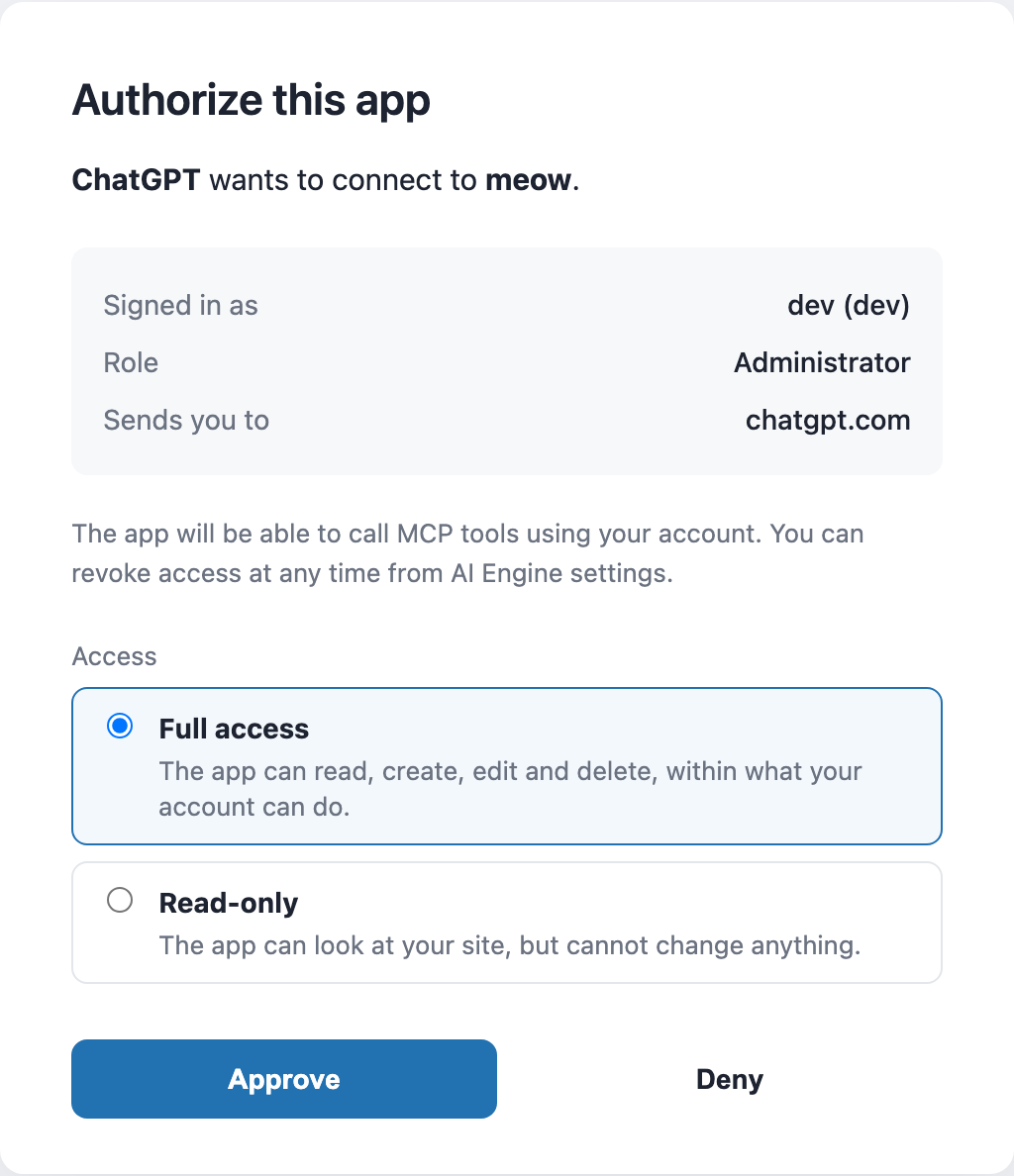
You choose the access on the authorization page, just before clicking Approve. Full access lets the app read, create, edit and delete, within what your account can do. Read-only lets it look at your site without changing anything.
To change it later, go to Settings > MCP > Connections. Each connection shows its access, and the button next to it switches it: Allow changes or Make read-only. The trash button revokes the connection. After a switch, refresh the tools in the assistant (Refresh in ChatGPT, reconnect in Claude) so it sees the new list.
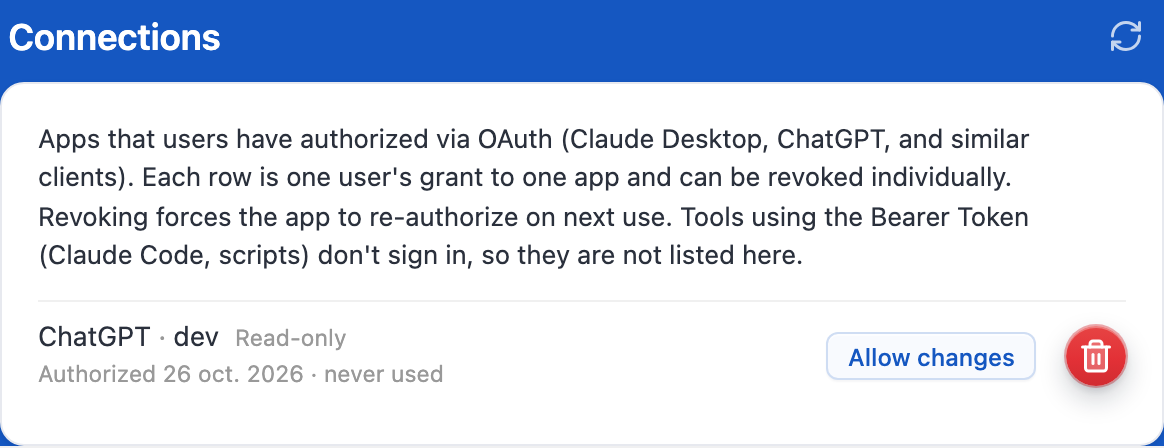
Connections made with the Bearer Token are not listed there, since they never sign in. Their access is set by Access Level in the Bearer Token section.
Editors
By default, only administrators can connect an assistant. Turn on Editor Access in MCP Settings to let Editors connect with their own account. They get content only: reading, and writing or editing the posts, pages, media, categories and comments they can already edit in WordPress. Settings, users, plugins, themes, deleting, and the tools of Pro tool sets and other plugins stay with administrators, and the assistant is told “Access denied” if it tries. If you turn Editor Access off later, Editors’ connections stop working on their next call and show as “No longer allowed” in Connections.
You changed the tools, but the assistant doesn’t see them
Assistants keep the list of tools they got when they connected. After you turn a tool set on or off, install a plugin that adds tools, or change a connection’s access, refresh that list: click Refresh on the plugin’s page in ChatGPT, disconnect and connect again in Claude, or run /mcp and reconnect in Claude Code. Also remember that a read-only connection never sees the tools that write, and an Editor only sees the content tools.
401, 403 and the Authorization header
A 401 from /wp-json/mcp/v1/http before signing in is normal: that is how the assistant learns where to sign in. A 401 that keeps coming back after a successful sign-in usually means your server removes the Authorization header before it reaches WordPress (common with PHP-FPM or FastCGI). With MCP Debug on, the log says “No authorization header provided. Server may be stripping headers.” Your host can fix it (the host page has the exact request). With a Bearer Token, the URL that contains the token (/wp-json/mcp/v1/YourToken) also works around it.
A 403 that comes as a short JSON message (like rest_forbidden) means WordPress refused: the account is not allowed to use MCP. A 403 that comes as an HTML page (“Access Denied”) comes from a firewall in front of WordPress.
/.well-known is blocked
To find out how to sign in, assistants ask for /.well-known/oauth-protected-resource and /.well-known/oauth-authorization-server on your site. AI Engine answers both, and also points assistants to an address that strict nginx rules don’t block. But if your server answers /.well-known/ itself, or a cache keeps an old 404, the sign-in never starts. The Connect card then says “The sign-in discovery is blocked” or “A cache is serving an old error”. Purge your cache first. If it is still blocked, the host page explains what to ask, including the Cloudflare rules that fix it.
Still stuck?
Contact us with the message from the Connect card, the result of the Connection Test, and the lines MCP Debug wrote to your PHP error log while you tried to connect. With those, we can usually tell right away where it stops.