First, make sure you understand what embeddings are and what they’re used for. Please read this documentation to get a clear overview of the concept.
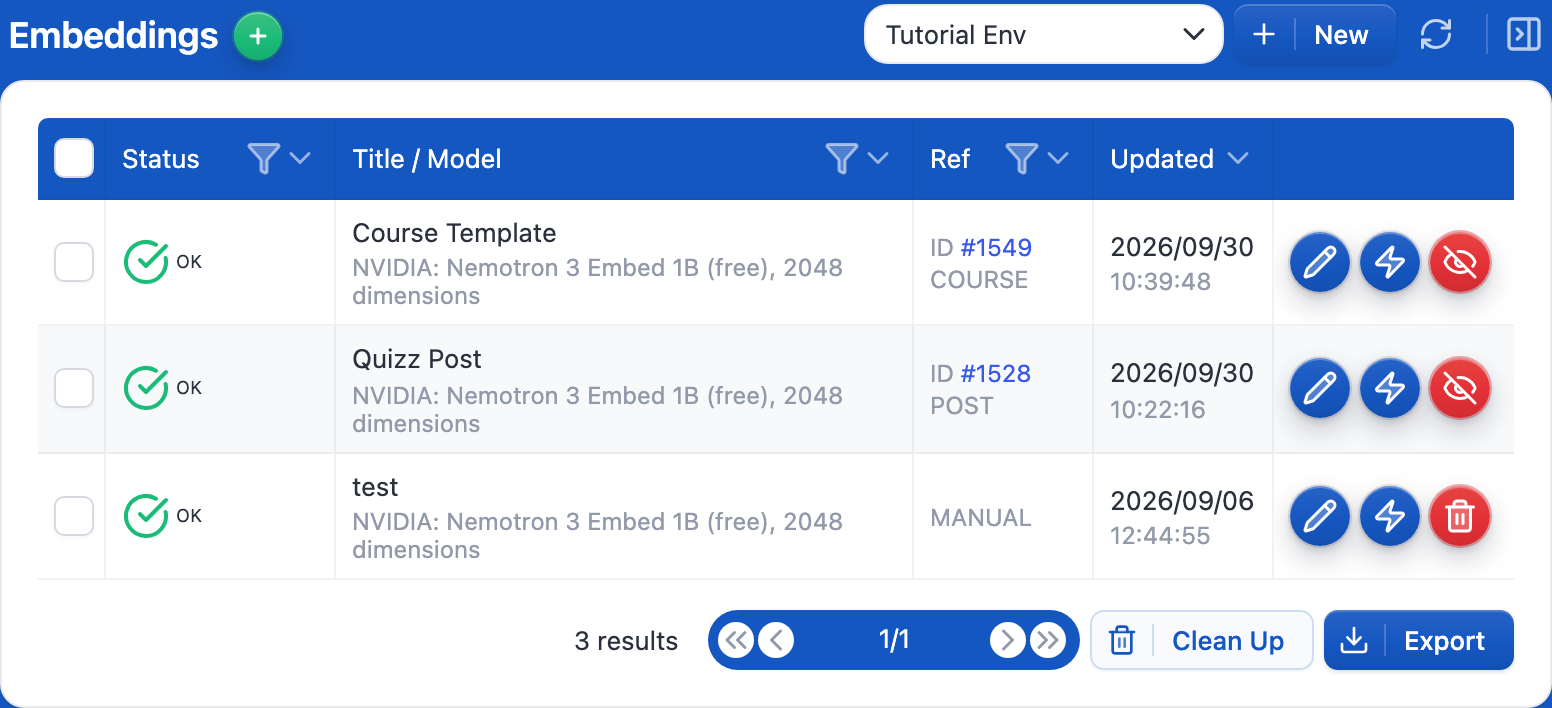
Go to the “Modules” of AI Engine. Enable the “Knowledge” option to display the “Knowledge” tab:
You should now see a new tab called “Knowledge”. This is where you’ll manage all your embeddings within AI Engine.
From this tab, you can create, upload, organize, and maintain your knowledge bases.
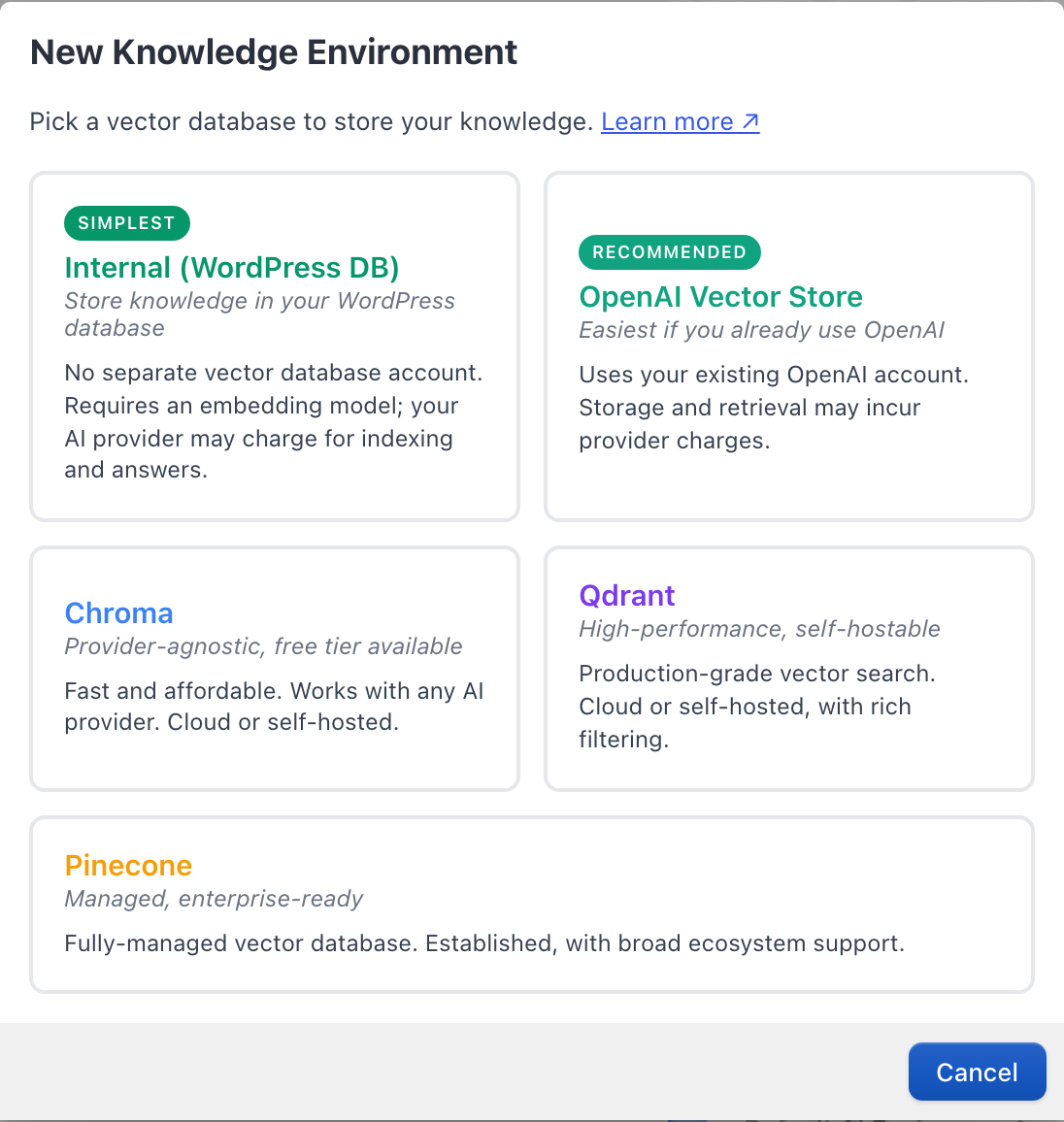
Now you’ll need to create the environment, which only takes a few clicks. Go in the Settings tab, under the Knowledge section, click the green + button next to Environments for Embeddings.
Select Pinecone.
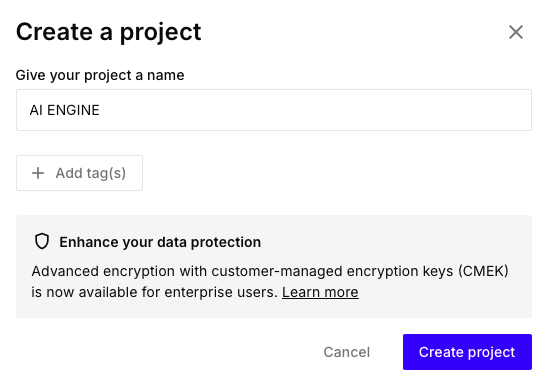
Go on Pinecone’s website and access your dashboard by login in. There, create a new Project with the free tier starter plan.
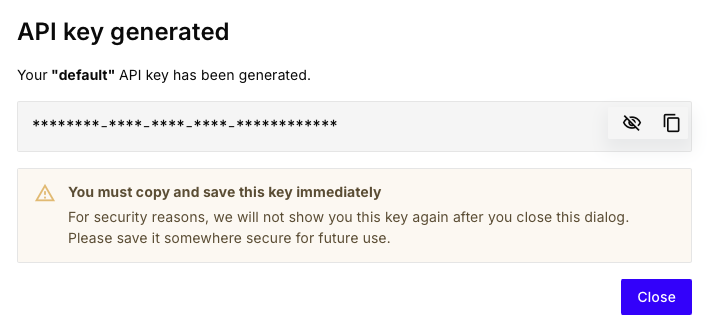
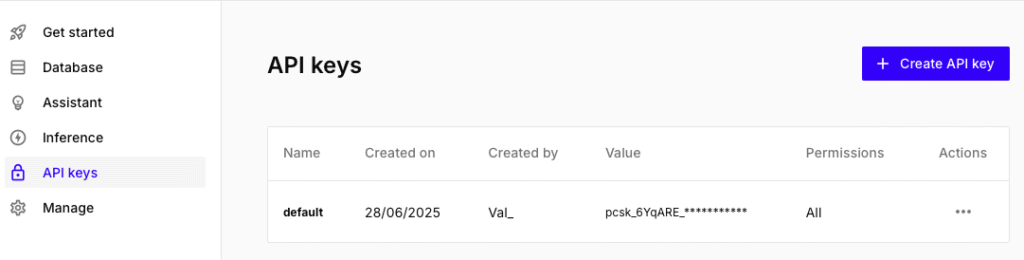
3(b). Then you should be presented with your default API key, make sure to copy it, as you’ll need to register it in AI Engine to enable API-based functionality.
If you missed it, don’t worry. Head to the “API Keys” tab and you should see a “Default” one there. If you can’t see it, please create one using the button “Create API Key“.
Paste your API key somewhere safe, like in a note for now. We’ll first complete everything on the Pinecone side, and then register all the necessary details in AI Engine in one go.
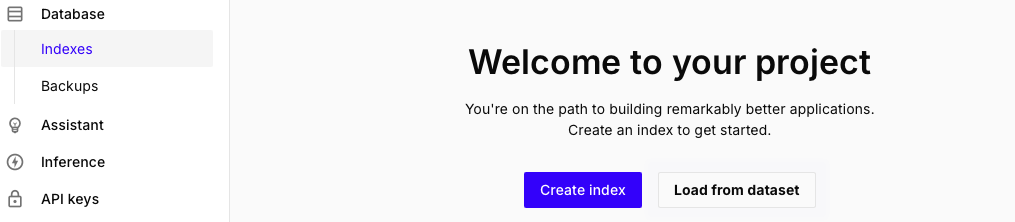
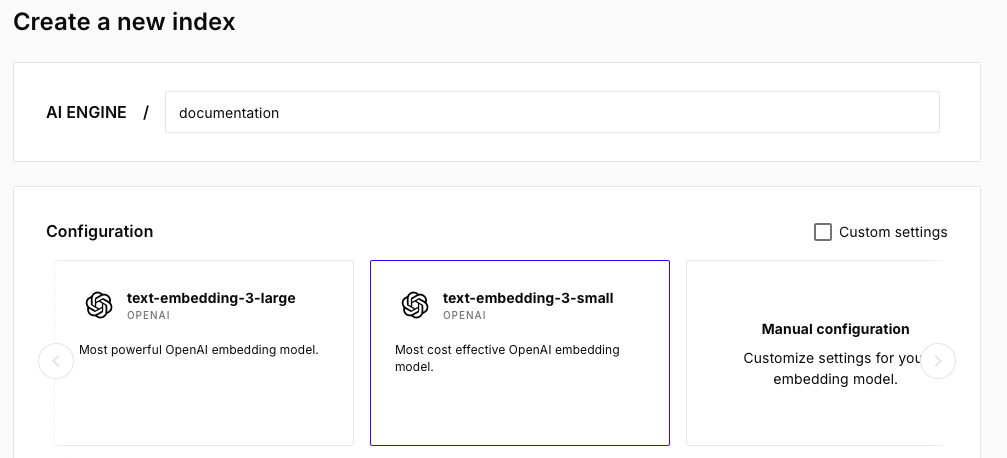
3(c). You can now create an index. Choose a name and dimensions.
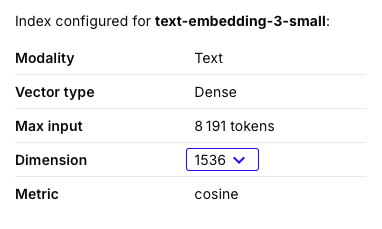
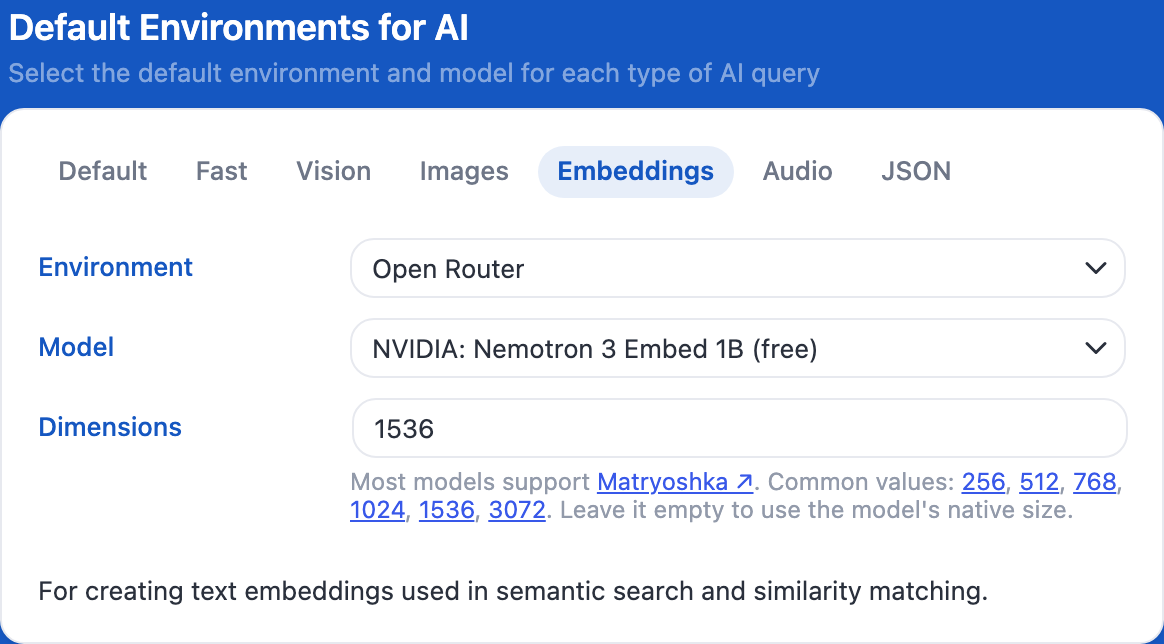
The dimensions should match what you have under ‘Default Environments for AI > Embeddings‘ inside the AI Engine settings. Simply use the ‘Setup by model‘ option and choose the one you want to use.
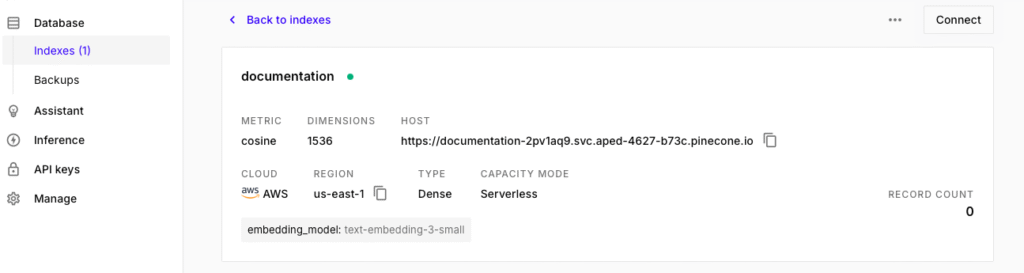
By default, AI Engine uses OpenAI’s Embedding 3-Small with 1536 dimensions, so unless you have changed it, make sure your index matches. You can use another embeddings model if you prefer, just make sure the dimensions are matching!
3(d). If everything is done correctly you should see something like this.
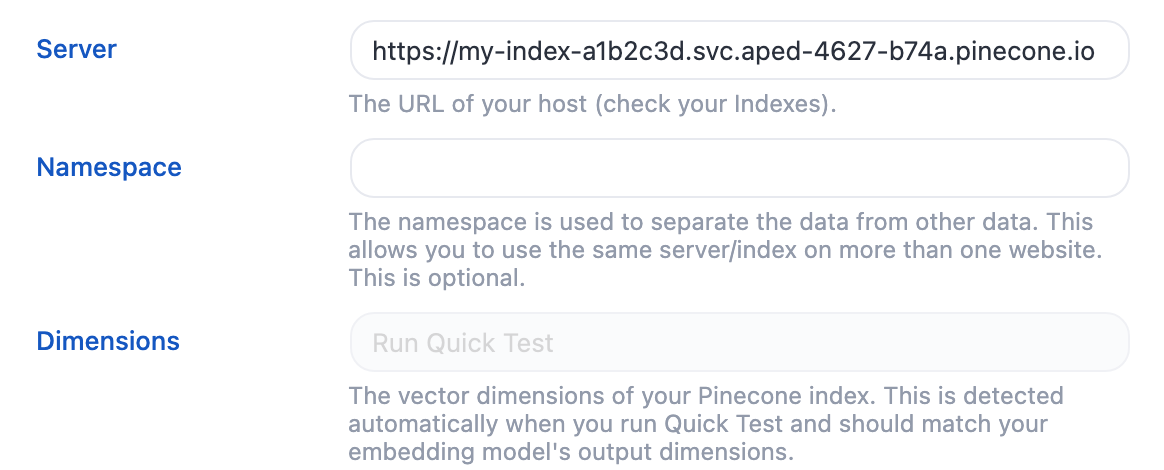
You can now get the “Host” value that we will use inside of AI Engine. Now you should have both your API key and your HOST, this is all we need to set things up in AI Engine.
Back in AI Engine, enter your API Key, and paste your HOST in Server. Namespace is optional: use it if you want to share the same index between several websites. Then open Actions and click Quick Test: it checks the connection and fills in the Dimensions of your index.
Keep in mind that adding embeddings to the context will increase the total token usage. The larger or more numerous the embeddings, the more tokens are consumed. If some embeddings aren’t appearing in the context, it might be because your Context Max Length (in Settings → Others → Advanced) is too low compared to your Max Results setting. Make sure those values are balanced to avoid cutting off relevant matches.
You’re done! 🎉
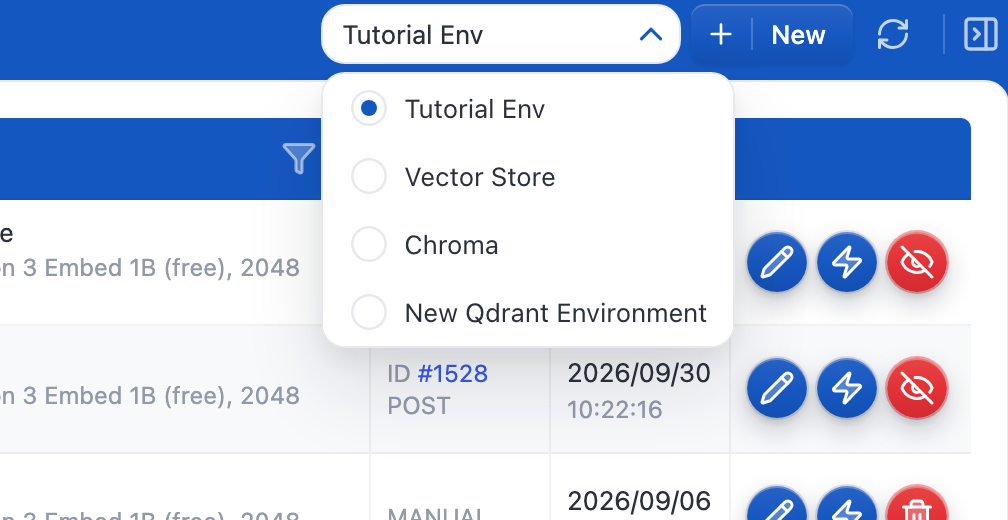
Now, go back to the Knowledge tab, select your environment in the “Select” input and start adding your embeddings.
You can read this documentation to explore the different ways to create or import them, depending on your workflow and the type of data you want to use.
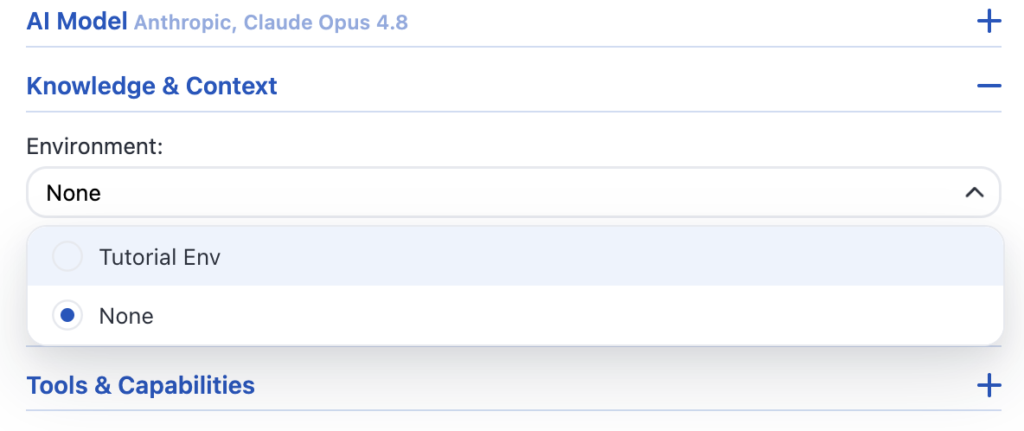
Don’t forget to select this environment in your chatbot settings to actually use it.
Moving your site
AI Engine also stores the text of each chunk (and its post ID) in the Pinecone metadata. If you move your site or lose the local embeddings table, enable Expert Mode in the Knowledge tab, open the Admin tab of the Environment section and click Pull All: your Knowledge base is rebuilt from Pinecone. This works for embeddings created with AI Engine 3.8.4 or newer.