The Models API lets other apps use the AI models of your site, with one single key. Coding agents like OpenCode, scripts, or any app that works with the OpenAI API can talk to your WordPress as if it were OpenAI. Your site then sends the request to the right provider (OpenAI, Anthropic, Google, OpenRouter…) with the keys you already set up in AI Engine. Those keys never leave WordPress.
It’s handy when you want to give a developer, a teammate or a tool access to your models without handing out your provider keys, and still see every call in Insights. This is a Pro feature.
The key only gives access to the AI models. It can’t read or change your posts, users or settings. If you want an AI to work on your site itself, use MCP instead.
Turn it on
Go to AI Engine → Modules, enable Models API, then click Generate to create a key. Apps send this key to use your models, so keep it private. If it leaks, click Generate again: the old key stops working right away. To turn the API off, simply empty the key.
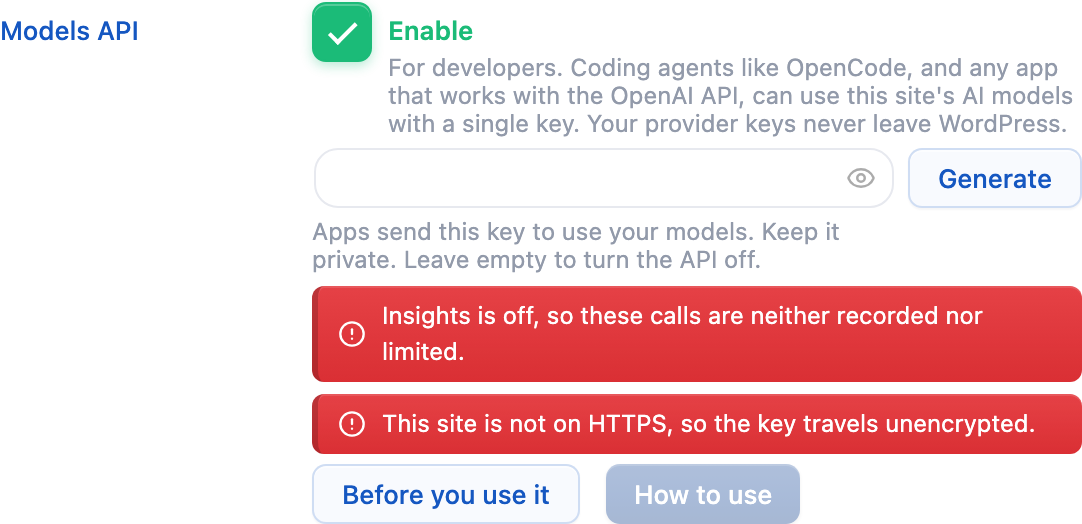
AI Engine warns you right there when something isn’t safe yet: Insights is off (calls are then neither recorded nor limited), no site-wide limit is set, or your site isn’t on HTTPS (the key would travel unencrypted). Click Before you use it to read about the risks, and How to use for a ready-to-copy setup.
Before you use it
- It can get expensive. Coding agents send a lot with every request (their instructions and their list of tools, often more than 10,000 tokens), and a single task can take many requests. Every call is logged in Insights. Calls run as the site administrator, and user limits skip administrators by default, so set a site-wide limit in Insights: that’s the one that protects you.
- The key is like a password for your AI credits. Anyone who has it can use every model of your site, as far as your limits allow. Share it only with people you trust.
- It needs a good host. Each reply keeps one PHP process busy until it ends. On shared hosting, your site can slow down while an agent works, and long requests can be cut. A VPS, or a host that allows long requests, works best.
Use it with OpenCode
First, keep the key in an environment variable, so it never ends up in a config file. On macOS and Linux, add this line to your shell profile (for example ~/.zshrc):
export AI_ENGINE_API_KEY="your-key"On Windows, run this once in PowerShell, then open a new terminal:
setx AI_ENGINE_API_KEY "your-key"Then click How to use in AI Engine, choose an environment, and copy the block it gives you into opencode.json (in your project folder, or in ~/.config/opencode/opencode.json to use it everywhere). The block already lists the models of that environment, with what they can do. Do the same for every environment you want.
Finally, run opencode in your project, type /models and pick one of the AI Engine models. The first start after a config change can take up to a minute.
Use it with other apps
Any app that works with the OpenAI API can use it. Give it your key, and this base URL:
https://yoursite.com/wp-json/mwai-openai/v1Model names are made of the environment name and the model, like openai/gpt-5.4-mini. To check that everything works and see the exact names, this lists your models:
curl https://yoursite.com/wp-json/mwai-openai/v1/models -H "Authorization: Bearer $AI_ENGINE_API_KEY"Three endpoints are available:
GET /models: the list of chat models you can use.POST /chat/completions: works with every supported provider, with streaming and tool calls.POST /responses: the OpenAI Responses API, for OpenAI models only.
Supported providers: OpenAI, Anthropic, Google, OpenRouter, Mistral, xAI, Perplexity, OVHcloud, Sakana AI and Custom (OpenAI-compatible) environments. Deprecated models are not listed.
If something doesn’t work
- “Invalid or missing API key”: check the key, and that your host doesn’t remove the Authorization header before it reaches WordPress (see When Your Host Blocks AI Engine).
- “The model … is not available on this site”: use a name exactly as
/modelsreturns it. - The answer appears all at once instead of word by word: a proxy or a CDN is holding the reply until it’s complete. It still works.