First, make sure you understand what embeddings are and what they’re used for. Please read this documentation to get a clear overview of the concept.
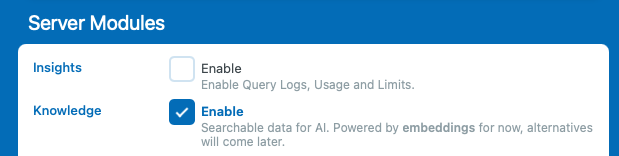
Go to the “Dashboard” of AI Engine:
Enable the “Knowledge” option to display the “Knowledge” tab:
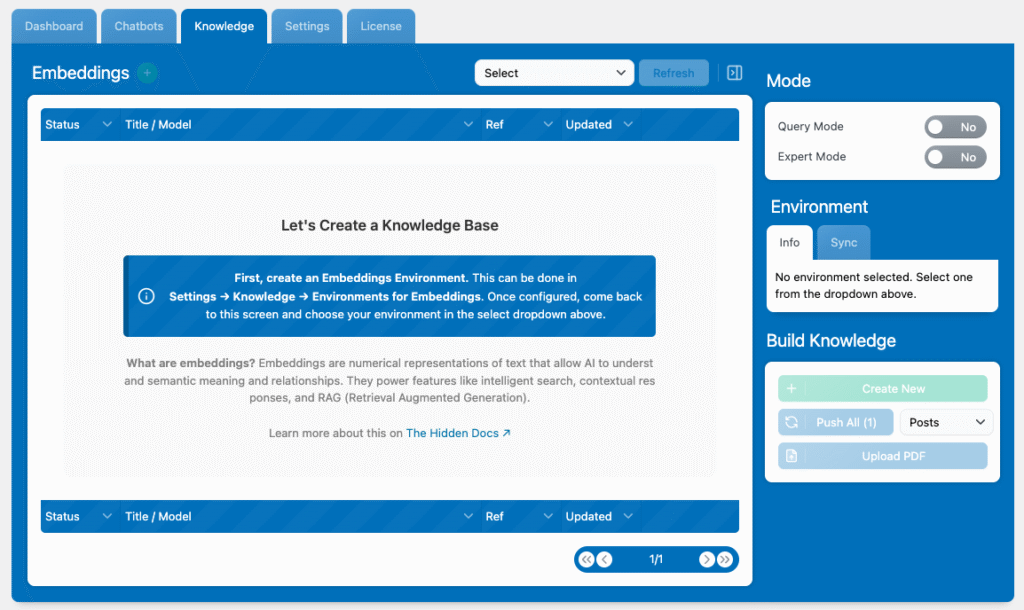
You should now see a new tab called “Knowledge”. This is where you’ll manage all your embeddings within AI Engine.
From this tab, you can create, upload, organize, and maintain your knowledge bases.
Now you’ll need to create (if you haven’t already) and link your Chroma account and environments with AI Engine.
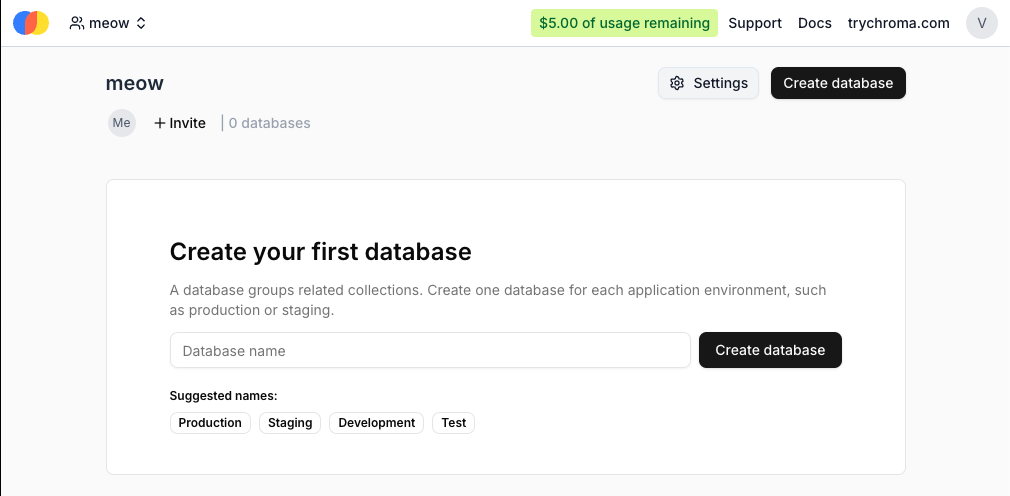
Click here to create your Chroma account and you’ll receive a $5 free gift from the AI Engine team. 🎉
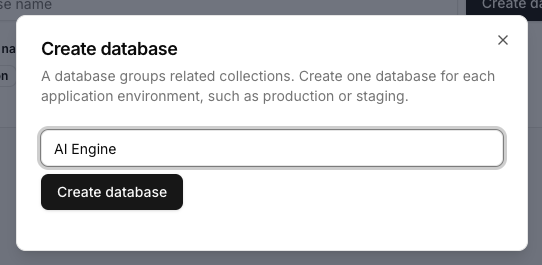
Let’s create a new database for your embeddings. Simply click the “Create Database” button.
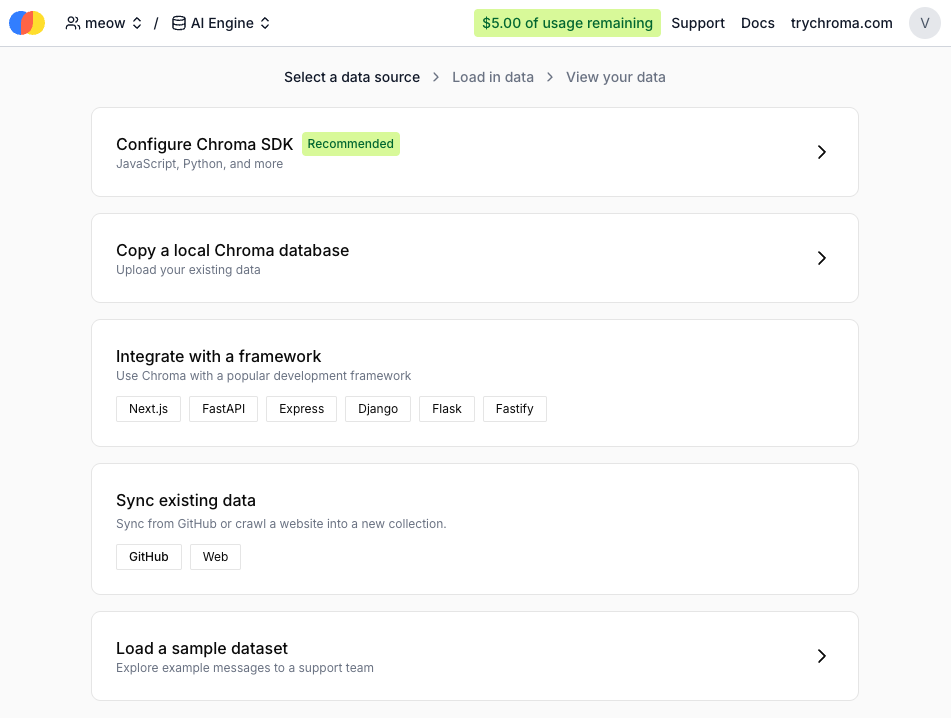
Once your database is created, you’ll be prompted to select a data source, but don’t worry, you’re already done for AI Engine. You can now go back to WordPress.
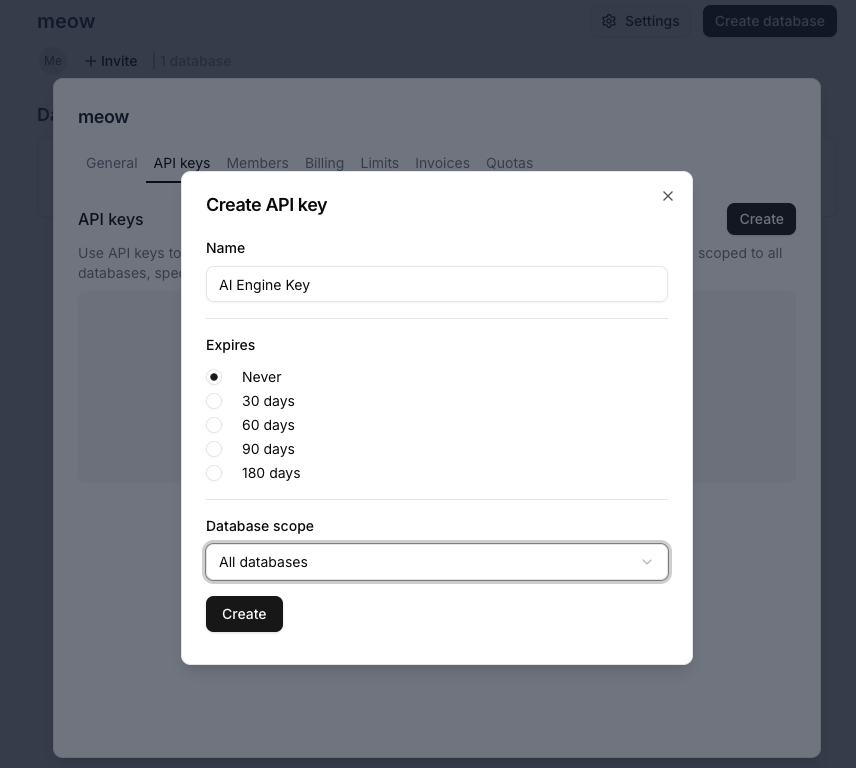
Before leaving Chroma, though, make sure to copy your API key as you’ll need it to connect AI Engine to Chroma.
Go back to the main dashboard by clicking your name in the top-left corner, or go directly to Chroma. Then navigate to Settings → API Keys → Create to generate your API key.
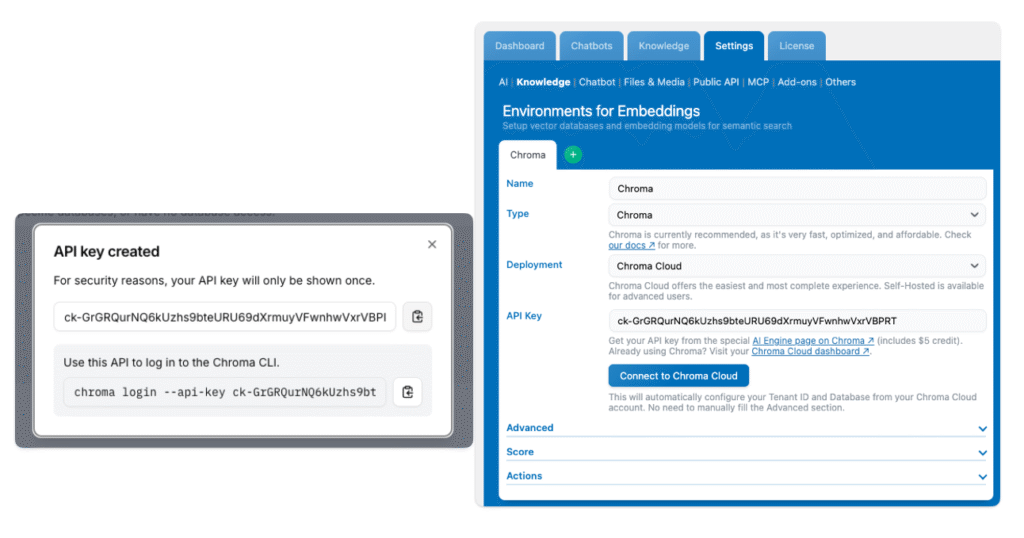
Go back to WordPress, then copy your API key and paste it in AI Engine.
To do that, go to Settings → Knowledge → Environments for Embeddings, make sure your environment type is set to Chroma, and then paste your API key in the corresponding field.
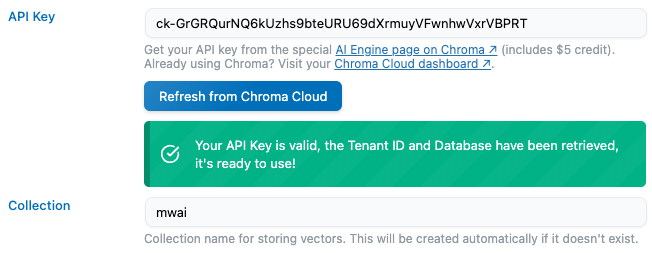
If everything is set up correctly, click the “Connect to Chroma Cloud” button. You should see a success message confirming the connection.
Here, we’re using Chroma Cloud, but Chroma also offers a self-hosted version if you prefer to manage your own data. You can find it on GitHub.
You’ll see a “Collection” named here, you can leave it as it is or delete it. Think of a collection as a compartment in your database. Check the Advanced section to learn more.
You’re done! 🎉
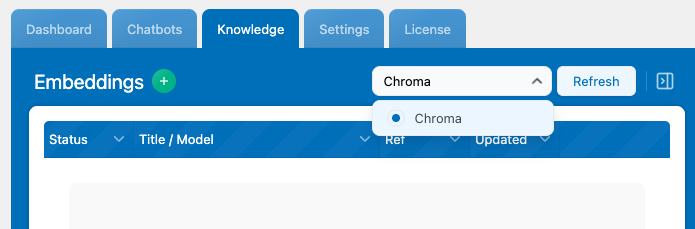
Now, go back to the Knowledge tab, select your environment and start adding your embeddings.
You can read this documentation to explore the different ways to create or import them, depending on your workflow and the type of data you want to use.
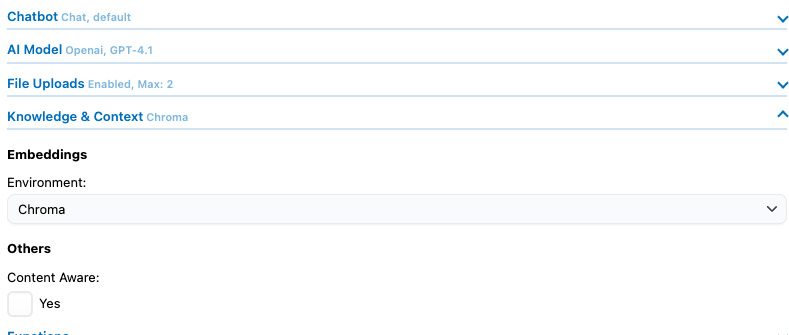
Don’t forget to select this environment in your chatbot settings to actually use it.
Advanced
Embedding Model
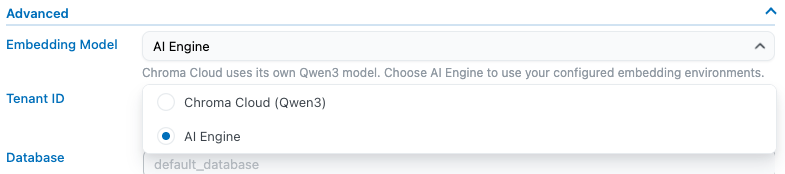
Chroma Cloud includes its own embedding model (Qwen3) to convert your content into vectors. You can leave this as is, or choose a different model if you prefer.
To change it, go to Environment Settings → Advanced → Embeddings Model, and select AI Engine as your embedding model.
It will now use the model you’ve selected in Settings → AI → Default Environments for AI → Embeddings.
Collections
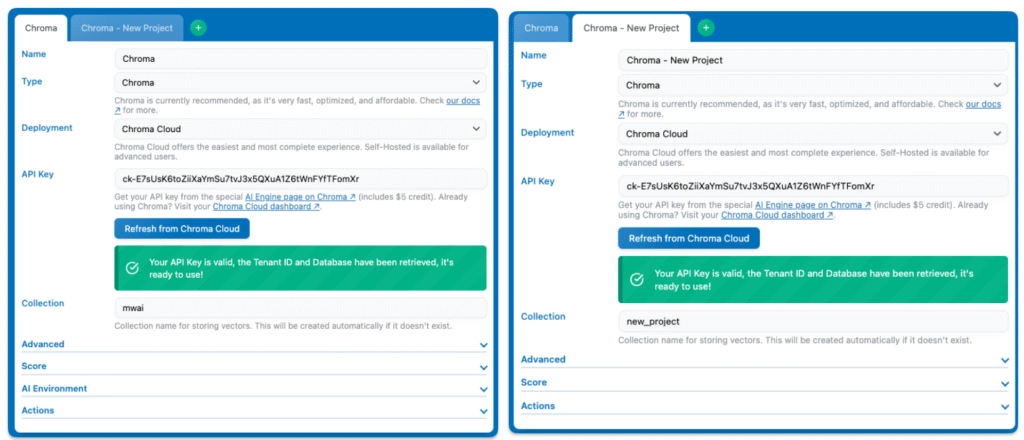
With a single Chroma account and one database, you can create multiple Knowledge environments in AI Engine (using the same API key).
Each environment, referring to its own collection, can store its own separate data, allowing you to maintain unique knowledge bases for multiple chatbots. For example, different contexts or projects, all running at the same time from a single Chroma database.
Simply create a new environment with the same settings, but change the collection. You’ll now have two separate environments that can be used for different chatbots, each with its own unique knowledge base.