Make sure to read the WordPress MCP Server to set up your environment in AI Engine before starting here.
Current Claude cannot directly connect through SEE to your server; you will need to use a bridge to make the two work together.
The little Node script mcp.js (bundled with AI Engine) is the bridge. It was written on MacOS so it has not been tested on Windows. What it does:
- Opens a secure SSE stream to WordPress (
/wp-json/mcp/v1/sse); - Tunnels Claude’s JSON-RPC calls to
/wp-json/mcp/v1/messages; - Relays the responses back to Claude;
- Cleans up automatically (sends
mwai/killand exits) when Claude quits.
No doubt that Claude will eventually support direct connections to AI Engine with SSE. OpenAI already does it with ChatGPT too. But for now, the whole stack is still in beta. It’s really meant for advanced users and developers who are comfortable with the command line and debugging.
Requirements
- WordPress 6.7+
- WP REST API (normally enabled by default)
- AI Engine 2.7.6+
- Claude Desktop ≥ 0.9.2
- Node ≥ 20.19.0
mcp.js also handles everything else: it registers your sites, edits Claude’s config, launches the relay, and shuts it down cleanly.
Connect Claude to your site
Heads‑up – advanced users only. Everything here is still beta. Be ready for CLI work, PHP/FPM restarts and some detective work if hosting layers interfere.
First, enable the no-auth URL in the AI Engine settings so you have a token-ready URL to use as a parameter for the add command.
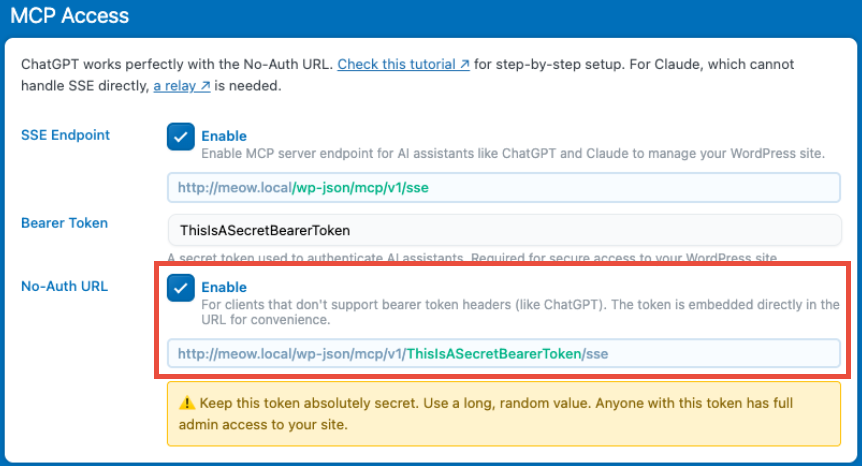
You’ll want to grab the content of the labs folder onto your local machine (or maybe just the mcp.js file, actually). Run these two commands:
# Let's make it an executable
chmod +x ai-engine/labs/mcp.js
# Register site: copy your no-auth URL where {YOUR_TOKEN} is actually your token
ai-engine/labs/mcp.js add https://example.com/wp-json/mcp/v1/{YOUR_TOKEN}/sse
# First-time test (verbose)
ai-engine/labs/mcp.js start
The first command writes an MCP entry to Claude’s config: ~/Library/Application Support/Claude/claude_desktop_config.json.
Launch Claude Desktop and wait a few seconds. You should be able to see that AI Engine is properly loaded as a MCP server:
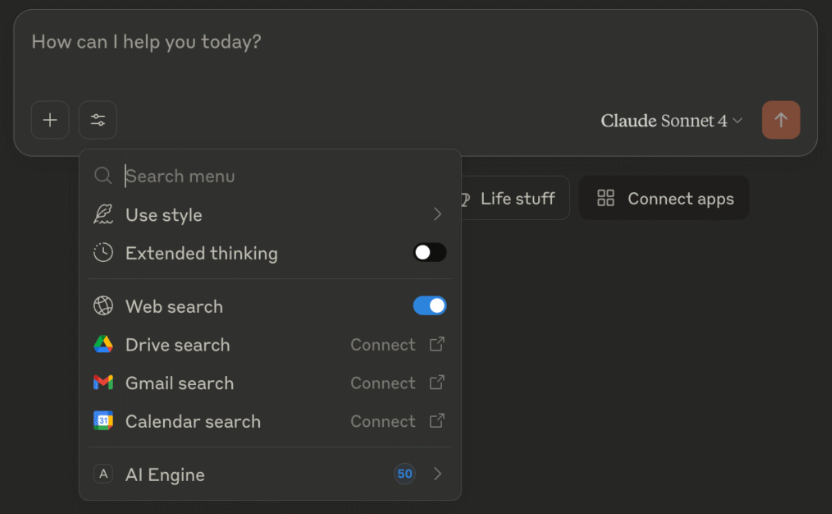
But honestly, don’t be surprised if it doesn’t… you have no idea how many issues I ran into. And most of the time, it wasn’t even about the code, but stuff like server security, SSL, caching, SSE quirks, edge-caching, Cloudflare headaches, and so on. Also, if the token doesn’t work, Claude will not tell you anything, you’ll have to look into its logs! I really recommend starting with a local install you can fully control, just to have a clean, simple environment at first.
Try these prompts
- Simple — “List my latest 5 posts.”
- Simple — “Create a draft post titled My AI Journey, one paragraph, and attach a random Media-Library image.”
- Intermediate — “Review the 10 newest posts, then publish a logical follow-up. Re-use existing categories & tags. Generate an image if none fits.”
- Advanced — “Fork Twenty Twenty-One into a dark grid theme called Futurism supporting post types Article & Project.”
Issues
Take a look inside the ~/Library/Logs/Claude directory. There are some log files there that might be useful — hopefully! Though honestly, they’re not as helpful as I wish they were.
Each SSE connection ties up one PHP worker. Kinsta and similar hosts give 5–8 workers per site, so two Claude sessions can chew through resources fast if they don’t end properly. You might see that your website doesn’t load anymore, in that case you’ll have to restart the web server, or kill the php-fm processes, that highly depends on how your server is set up.
If the SSE connection remains open unintentionally, use the provided graceful exit (closing Claude or terminating the relay with Ctrl+C). Otherwise, manually restart your PHP or web server processes.
If you’re running into JS errors and using NVM, double-check that there aren’t any old Node versions still listed when you run nvm list. For some reason, NVM can end up loading an older version instead of your default or latest one, and that can cause all sorts of issues.
Caching can cause all kinds of problems. Since you’re not connecting to the SSE through your browser, Cloudflare or your hosting service might flag you as a non-browser and then SSE just won’t work (yeah, that really happens). Usually it’s done for caching reasons. For example, if you’re using Kinsta Edge-Caching, you’ll need to turn it off completely. Or you can talk to Kinsta and ask them to disable it only for the SSE endpoint of AI Engine.
If you want to test your server for SSE, try my gist here.
Handy mcp.js commands
# Add a new site with No-Auth URL (automatically sets it as Claude's target)
./mcp.js add <noauth-url>
# Example: ./mcp.js add https://example.com/wp-json/mcp/v1/abc123/sse

# List all registered sites (→ shows current Claude target)
./mcp.js list

# Interactively select which site Claude should use
./mcp.js select

# Test connection with verbose output
./mcp.js start

# Remove a site
./mcp.js remove <site-url>

# Advanced: Manual testing
./mcp.js post <domain> <json> <session_id>
Extra PHP logging (optional)
Edit wp-content/plugins/ai-engine/classes/modules/mcp.php:
private $logging = true;Then tail wp-content/debug.log.
What happens when you close Claude?
Claude doesn’t send SIGTERM to helpers, so mcp.js handles its own cleanup:
- detects stdin close,
- sends a
mwai/killnotification to WordPress, - aborts the SSE fetch,
- exits 0 — no orphan
nodeprocesses.