Go to the “Knowledge” tab. This is where you’ll set up everything and add your new embeddings. Make sure you have selected an environment in the top select, or the button will be blocked until you do so.
Prerequisite
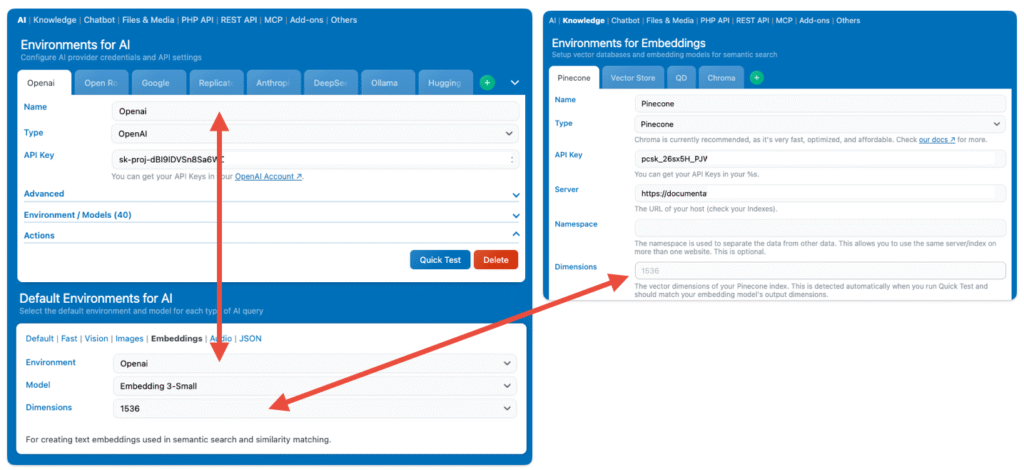
To add embeddings to your knowledge environment, you will need to do two things first:
- a knowledge environment.
- an AI environment with a usable embedding model matching your vector database dimensions.
Your setup should look something like this:
Manual
The simplest way to create a new embedding is to do it manually. Click the green “+” button or the “Create New” option under Build Knowledge, and a new modal will appear.
From there, set a title and fill in the content. The behavior and type fields will be locked to “context” and “manual”, since that’s the mode you’re currently using.
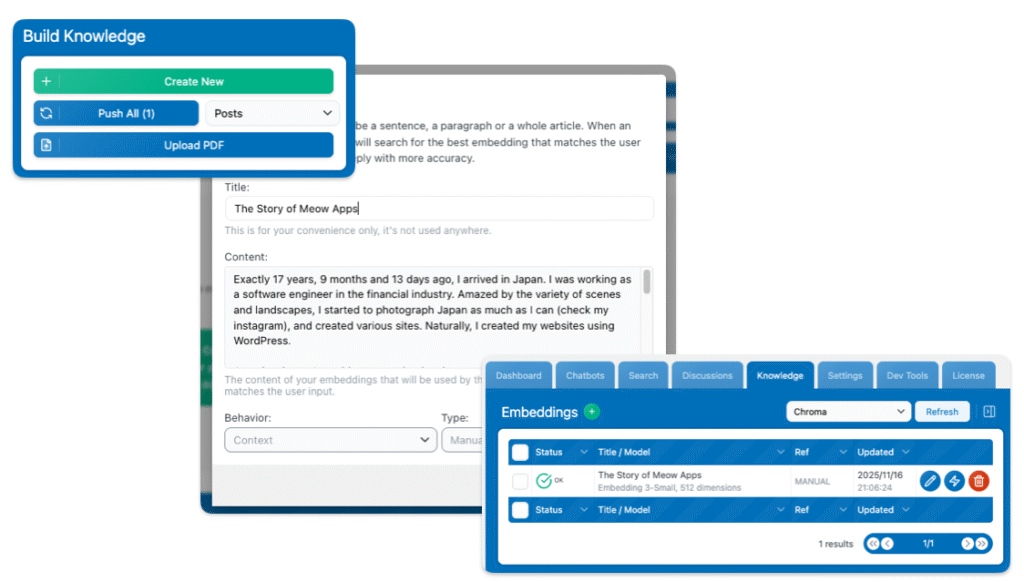
The Title is not part of the embedding itself. It’s only there to help you manage and organize your entries more easily. If you want the title to be included in the actual embedded data, you’ll need to also add it manually inside the Content field.
Embeddings based on Posts
AI Engine includes built-in tools to help you generate embeddings based on your WordPress posts. This includes automatic synchronization when posts are modified and automatic deletion of embeddings when posts are deleted.
You can also choose a specific post type to use for embedding sync. This gives you flexibility, you can create a custom post type (CPT) specifically dedicated to embeddings. This way, you can design advanced behaviors tailored to your content structure, using embeddings that are cleanly separated from your regular content. This setup is especially useful if you’re aiming to create dynamic interactions or content-aware chatbots.
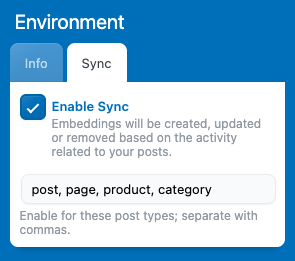
In the right-hand section, under Environment, open the Sync tab and click “Enable Sync”. Then confirm by clicking “Use Current Environment” to sync the environment currently open in the Knowledge tab.
You’re done! All the post types listed here will now be synced automatically. If you encounter any issues with the sync, please check the documentation for troubleshooting steps.
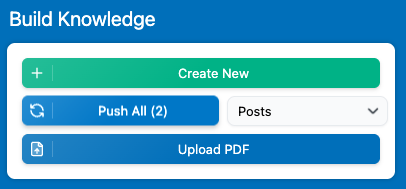
You can also do that manually, without the sync, by using the “Push All” button and selecting a post type; this will go through all the posts from that post type and create embeddings based on their content. If the sync is not enabled, then it’s just like manual embeddings; if the sync is enabled, they will also auto-update.
Advanced Sync Behaviors
You can enable Expert Mode to get more control over how your posts sync. Within this mode, you can turn on “Rewrite Content”, which forces the embedding to be rewritten every time a sync is triggered, even if the post content itself hasn’t changed.
This is useful if some of your content comes from custom fields (like ACF) or third-party builders, since that data might not be part of the main post body. The Content Parser addon will update its written data when this option is enabled.
Embeddings based on PDF
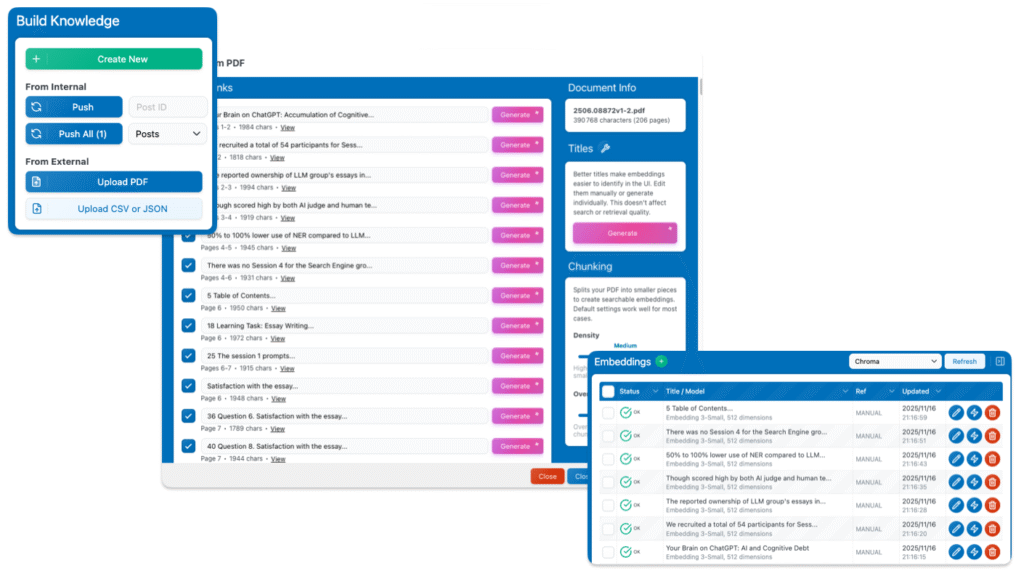
To create embeddings from a PDF file, go to the Build Knowledge section on the right side of the Knowledge tab and click the “Upload PDF” button. You can then follow the step-by-step process to create embeddings.
Embeddings based on URLs
You can create embeddings from URLs, whether they are internal or external. The system will scrape the page and extract its readable text content.
Keep in mind that the quality and structure of the extracted text depend heavily on the original page formatting. The content is processed as raw text, so HTML elements such as hyperlinks are not preserved unless the full URL is explicitly written in the text.
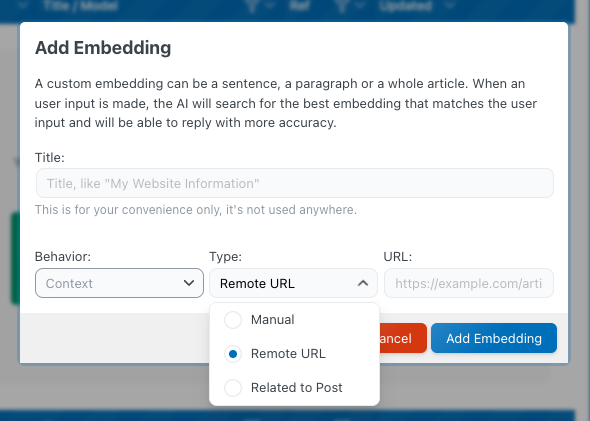
To create one, click the “+” or “Create New” button to open the Add Embedding popup, then change the Type to “Remote URL.” Add the corresponding URL and Title for the content you want to embed.
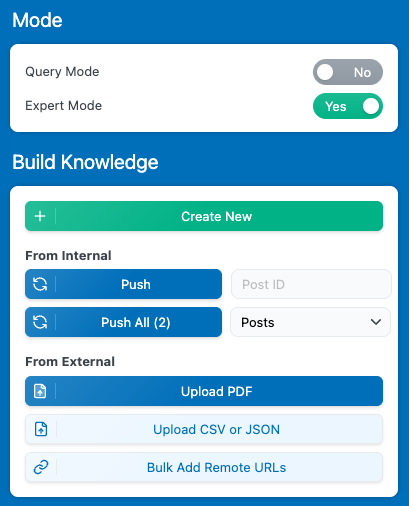
If you enable Expert Mode, you can create bulk URL embeddings. This allows you to paste multiple URLs separated by line breaks, and the system will process them all at once.
By default, Remote URL embeddings are synced every 24 hours, meaning the content is refreshed from the same URL daily. You can change this frequency by going to Settings → Knowledge → Sync Settings → Remote URLs → Sync Interval.